Module Usage
Creating a subscription on the Odoo website
- The customer opens the Odoo website.
- Opens the subscription product page.
- Clicks Add to cart.
- Proceeds to Checkout.
- Fills in the data (contact details, address, etc. as needed).
- At the payment method step, selects LiqPay.
- Confirms the order — the system redirects the customer to the LiqPay payment page.
- The customer completes the card payment on the LiqPay side (first payment / prepayment for the subscription).
After the first payment is confirmed:
- in LiqPay, a subscription payment is created, with:
- start date (SO/Invoice date);
- charge amount;
- charge frequency;
- subscription end date (if specified);
- LiqPay returns the result of the first payment and the payment ID (payment_id) to Odoo.
Actions in Odoo
If the Accounting (accountant) module is installed:
After a successful payment and response from LiqPay:
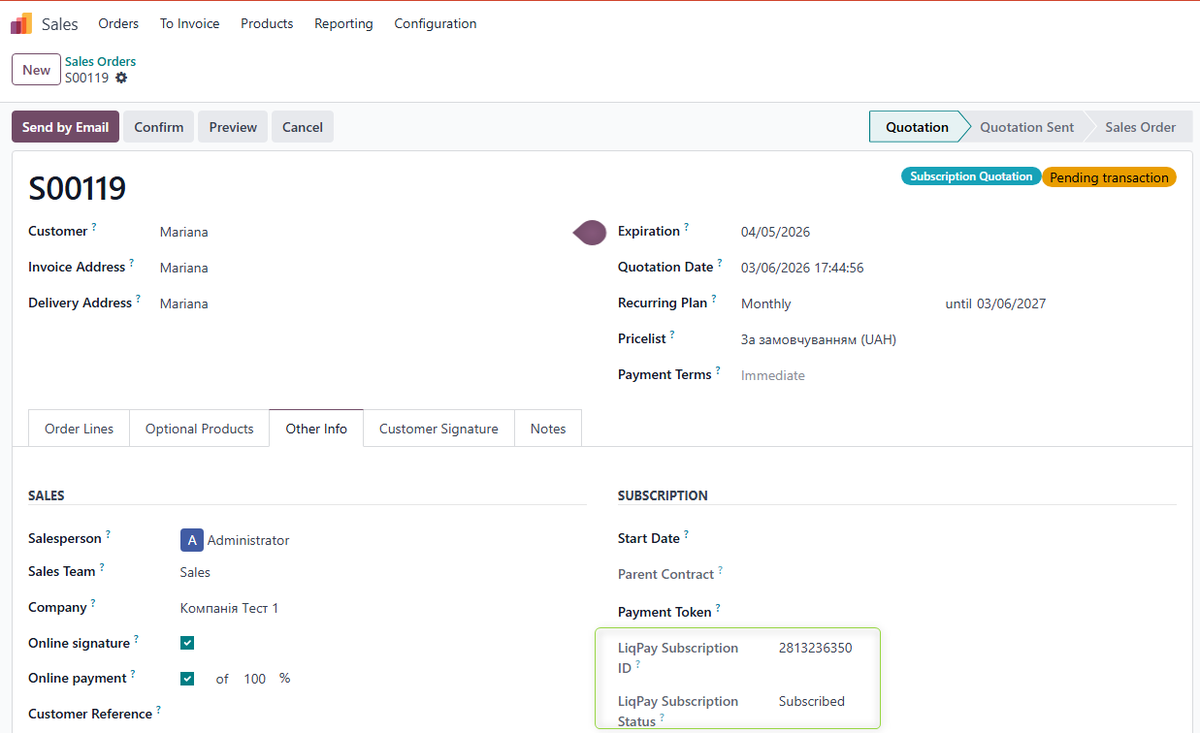
- A Sales Order (SO) is created in Odoo with the status Sales Order (if it did not exist yet). The LiqPay subscription ID and the current LiqPay subscription status are stored on the Sales Order on the "Other Information" tab, which allows you to quickly see the state of the external subscription directly in Odoo.
- An Invoice for the first subscription period is created automatically.
- The Invoice payment status is In Payment.
- A related Payment is created for the full amount, with the status In Process.
- A Payment Transaction is created automatically. You can access it from the Invoice via the smart buttons, the same way as the related Payment.
- In the Memo field, the system stores the unique LiqPay payment ID. This value is propagated to the Journal Items and is used for bank statement reconciliation.
To complete the operation, the accountant:
- Imports the bank statement.
- Performs reconciliation of bank statement lines with the corresponding Payments (identified by the Memo / Payment Reference with the LiqPay ID).
- After reconciliation, the Invoice and Payment statuses change to Paid.
If the Accounting (accountant) module is not installed:
- A Sales Order (SO) is created in Odoo with the status Sales Order. The LiqPay subscription ID and the current LiqPay subscription status are stored on the Sales Order on the "Other Information" tab, which allows you to quickly see the state of the external subscription directly in Odoo.
- An Invoice is automatically created with the payment status Paid.
- A related Payment is created for the full amount with the status Paid.
- A Payment Transaction is created with LiqPay payment details; it can be opened from the Invoice via the smart buttons.
- The sales operation is considered completed; there is no separate bank statement reconciliation process in Odoo.
Recurring subscription charges
Actions on the LiqPay side
When the next planned charge date arrives:
- LiqPay automatically initiates the next payment using the stored card details of the customer;
- a new LiqPay payment is created;
- a notification with the payment result and a new payment ID is sent to Odoo.
Card data is stored and processed on the LiqPay side only; Odoo receives only the payment result and stores the payment ID.
Actions in Odoo when the Accounting module is installed
After Odoo receives a notification from LiqPay about a successful recurring charge:
- A new Invoice for the next subscription period is automatically created in Odoo.
- A new Payment is created for the charged amount with the status In Process.
- A new Payment Transaction is created, in which:
- the Payment Reference field stores the LiqPay payment ID;
- In the related Payment, the LiqPay ID is written into the Memo / Payment Reference field.
- After importing the bank statement and reconciliation:
- the Invoice status changes to Paid;
- the Payment status changes to Paid.
These steps are repeated for every period while the subscription remains active.
Actions in Odoo when the Accounting module is not installed
If the Accounting module is not installed:
- For each recurring charge, a new Invoice is created with the payment status Paid.
- A related Payment is created with the status Paid.
- A Payment Transaction is created with the LiqPay payment ID.
- Bank statement reconciliation in Odoo is not performed.
Ending or cancelling a subscription
Automatic subscription end (via cron)
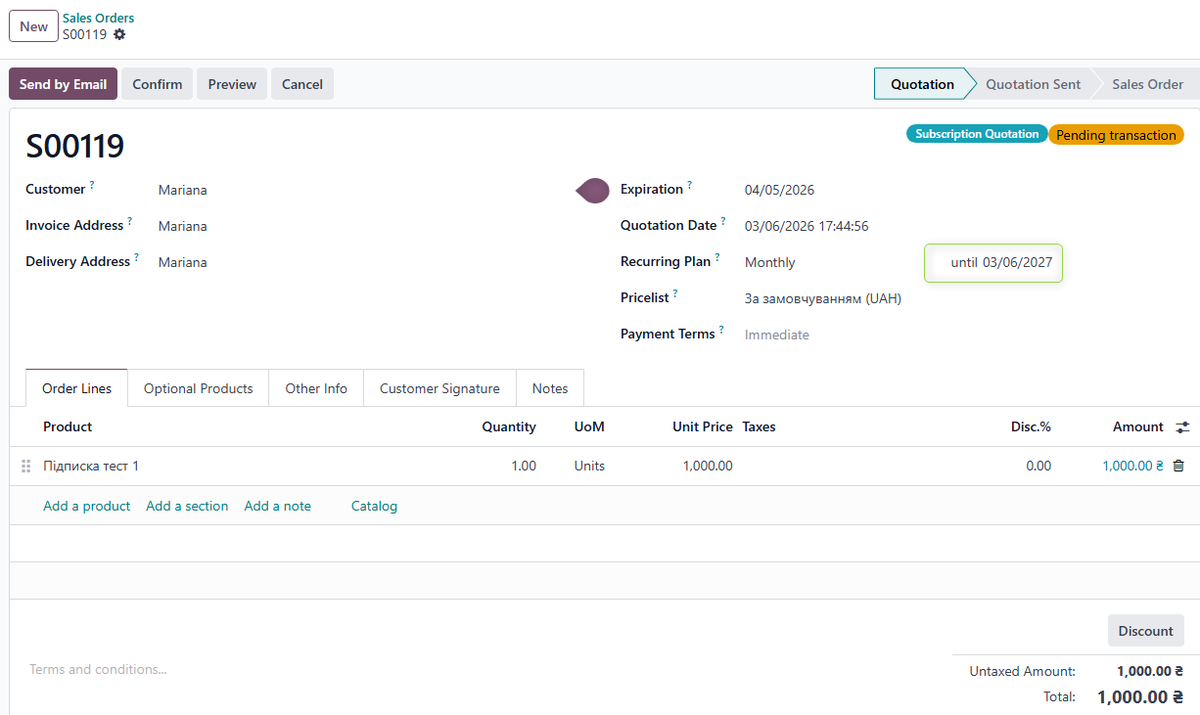
- In Odoo, the Sales Order (SO) with a subscription has a field for the subscription end date.
-
Odoo has an automated scheduled action (cron) "LiqPay: Cancel Expired Subscriptions". This cron runs every day and:
- selects all Sales Orders where the subscription end date ≤ current date;
- for each such subscription, sends a request to LiqPay to close the subscription.
-
LiqPay receives the request, closes the subscription and stops any further charges.
-
After confirmation from LiqPay, Odoo:
- changes the status of the corresponding subscription / Sales Order to "Churned";
- no new payments are created for this subscription.
Thus, the subscription end date is set and stored in Odoo; the cron monitors when this date is reached, sends the information to LiqPay, and LiqPay actually stops the charges and closes the subscription.
Manual subscription close
-
The Odoo user opens the corresponding Sales Order with an active subscription.
-
Clicks the "Close" button.
-
Odoo immediately sends a request to LiqPay to close this subscription.
-
LiqPay receives the request, closes the subscription and stops further charges.
-
After confirmation from LiqPay, in Odoo:
- the subscription status on the Sales Order is changed to "Churned";
- no new recurring payments are initiated for this subscription.
Both methods (via automatic cron and manually from the Sales Order) ensure synchronized subscription closure in both Odoo and LiqPay, and guarantee that no further payments will be collected.