Module Usage
Where to find the BOM Structure
After installing the module, new tabs will appear:
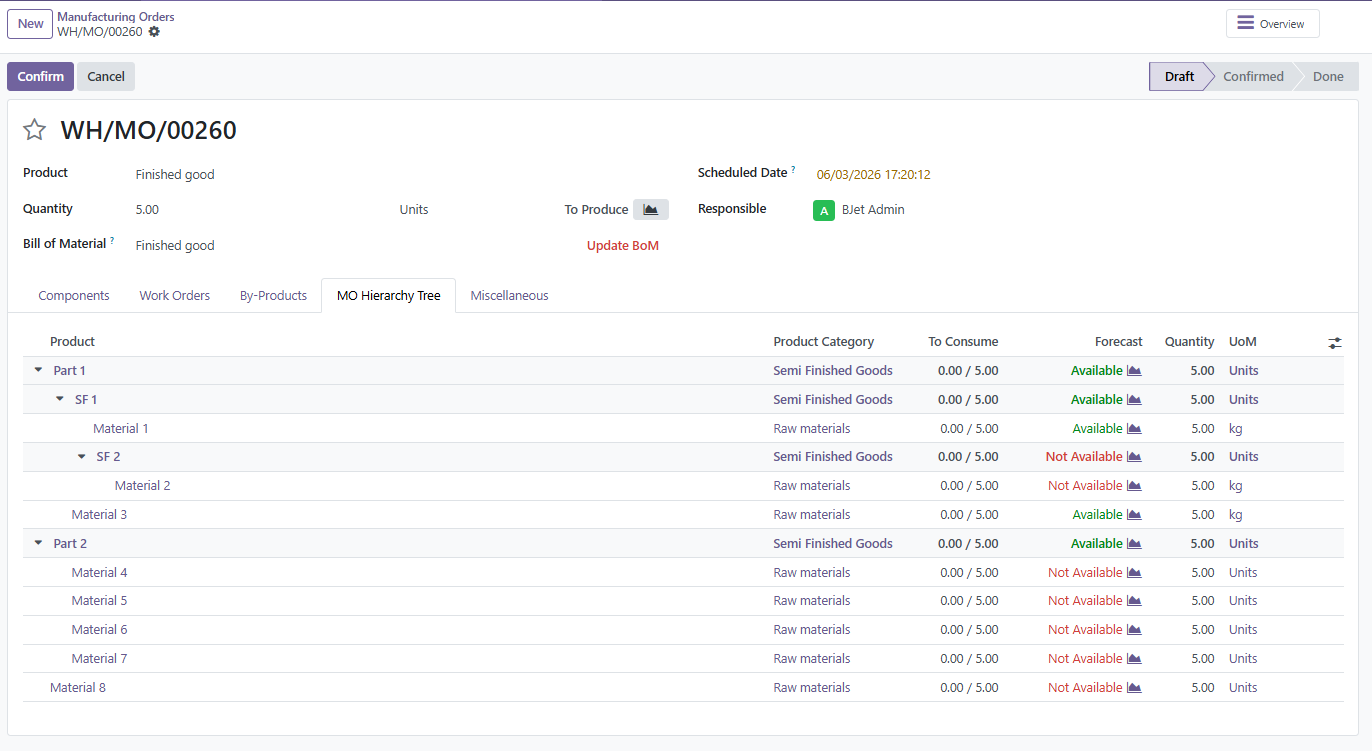
- In Manufacturing Orders (MO) — tab MO Hierarchy Tree
- In Bills of Materials (BOM) — tab BOM Structure
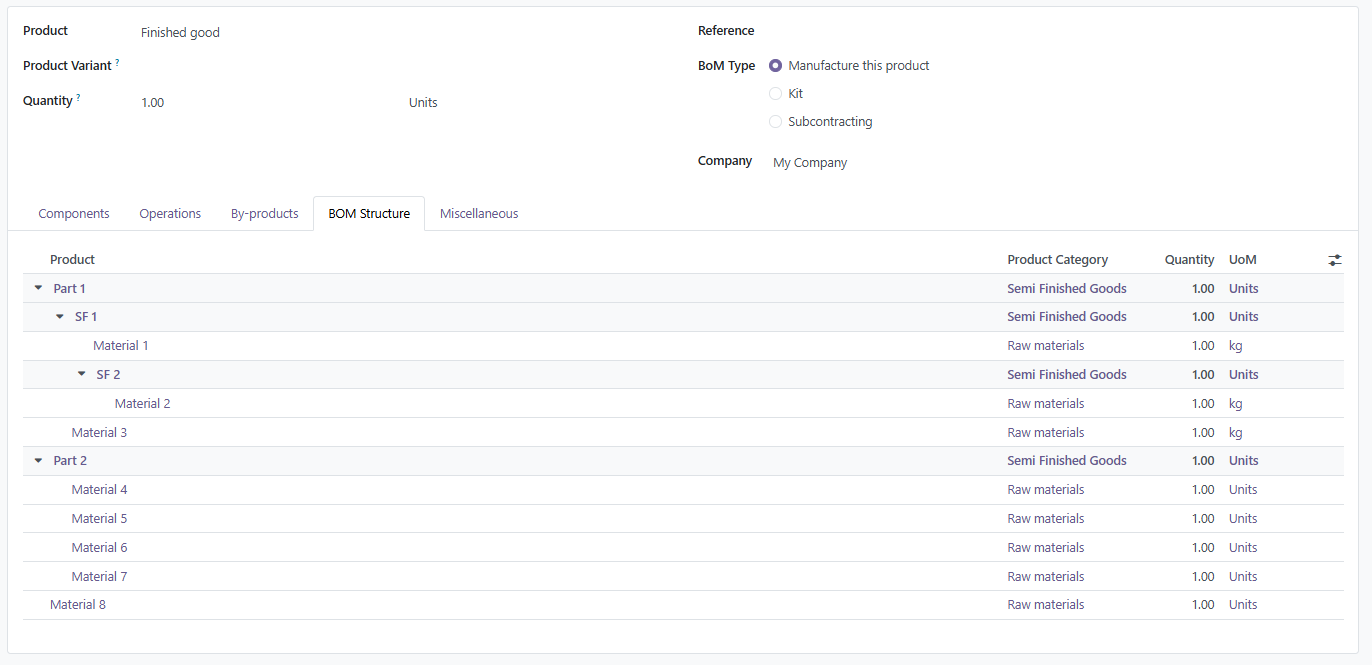
These tabs allow you to view the complete structure of product components.
Users can:
- expand levels
- collapse levels
to quickly analyze the product composition.
What the BOM Structure tab shows
The table may display the following columns:
- Product
- Product Category
- To Consume
- Forecast
- Quantity
- Unit of Measure
Manufacturing BOM Structure (MO Hierarchy Tree) helps users quickly understand:
- what materials are required
- whether components are available
- how materials are structured in the production hierarchy
Automatic structure updates in Manufacturing Orders
If the Quantity to Produce field is changed in the Manufacturing Order, the BOM Structure tab automatically:
- recalculates required material quantities
- updates the component structure
This ensures that the displayed data always reflects the current production quantity.
If the product has no BOM
If a product does not have a Bill of Materials — the BOM Structure tab will be empty.
This means that the system does not have any component structure to display for this product.
Product Category in components
The module adds a new column Product Category to the following tabs:
- Components in Manufacturing Orders
- Components in Bills of Materials
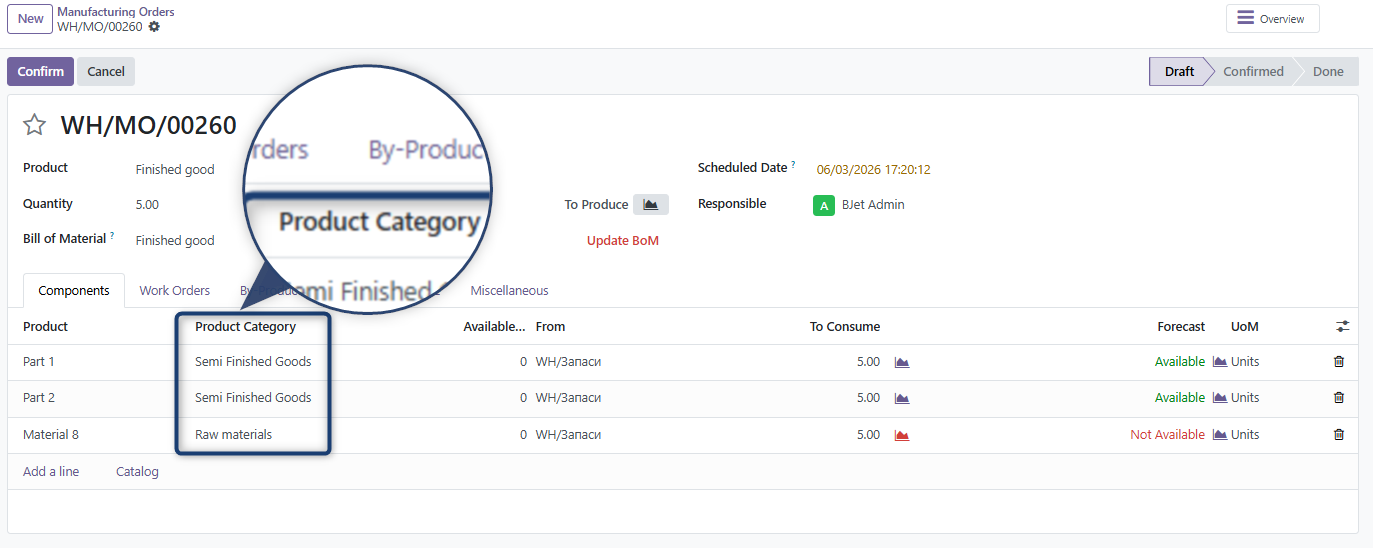
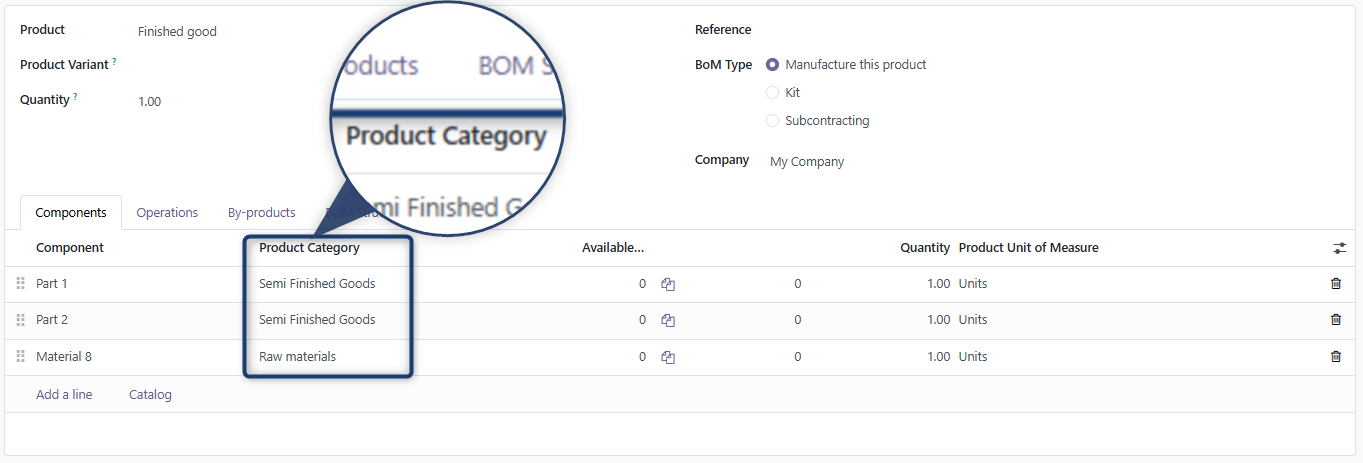
This column can be shown or hidden depending on user preference.
It helps users quickly understand:
- the material type
- the product group
- the procurement structure
Important notes
- The BOM Structure module does not modify the BOM
- It only visualizes the material structure
- Any number of BOM levels is supported