Module Usage
Payment from the Odoo website
Steps to make a payment:
- Go to the Odoo website.
- Add a product to the cart.
- Proceed to the checkout.
- At the payment method selection step, choose LiqPay.
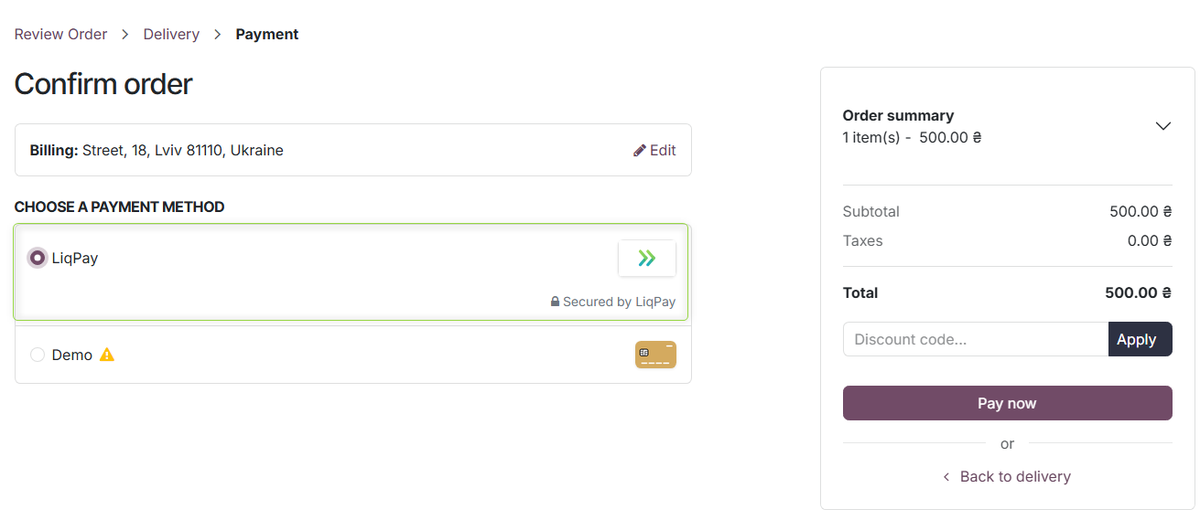
- Confirm the order — the system will redirect the user to the LiqPay page.
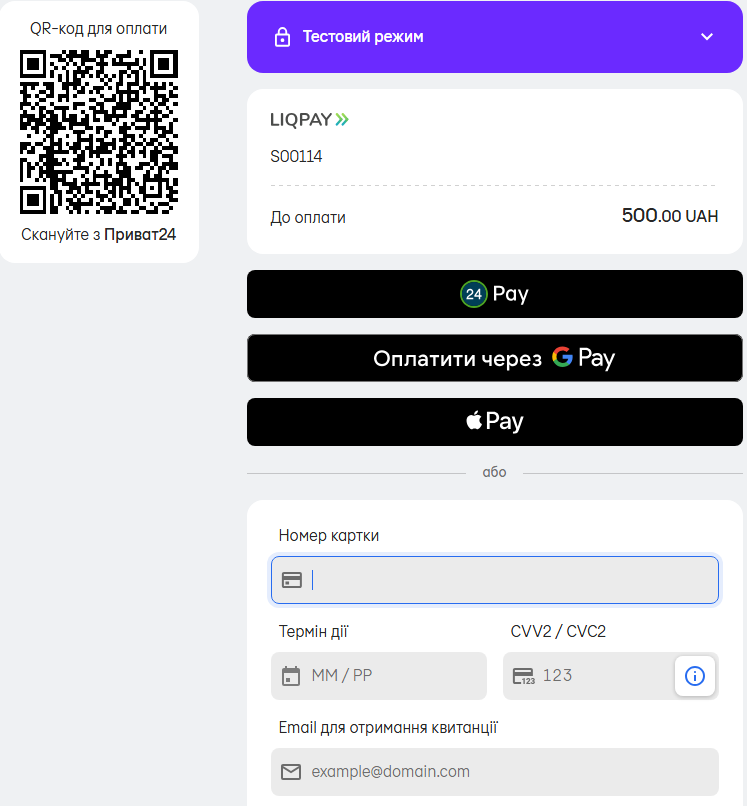
- The customer completes the card payment on the LiqPay side.
Payment result
Payment result when the Accounting module is installed
If the Accounting (accountant) module is installed:
After a successful payment:
- A Sales Order (SO) is created in Odoo with the status Sales Order.
- An Invoice is created automatically.
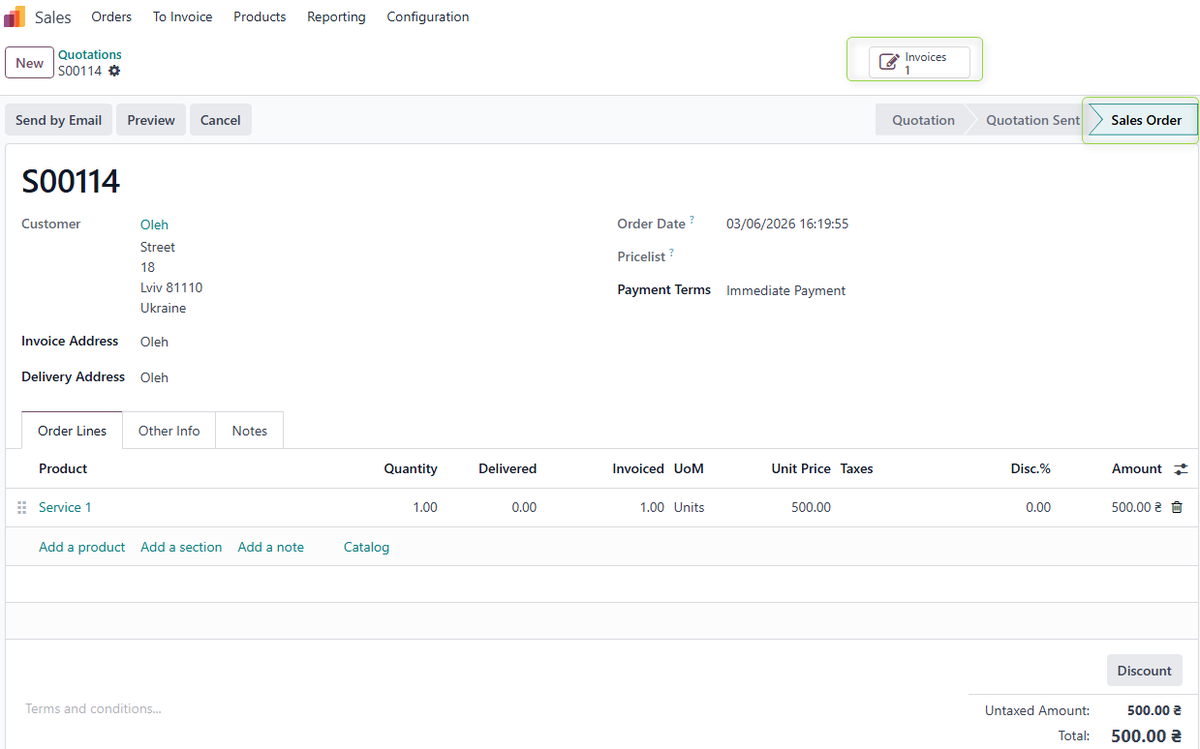
- The invoice payment status is In Payment.
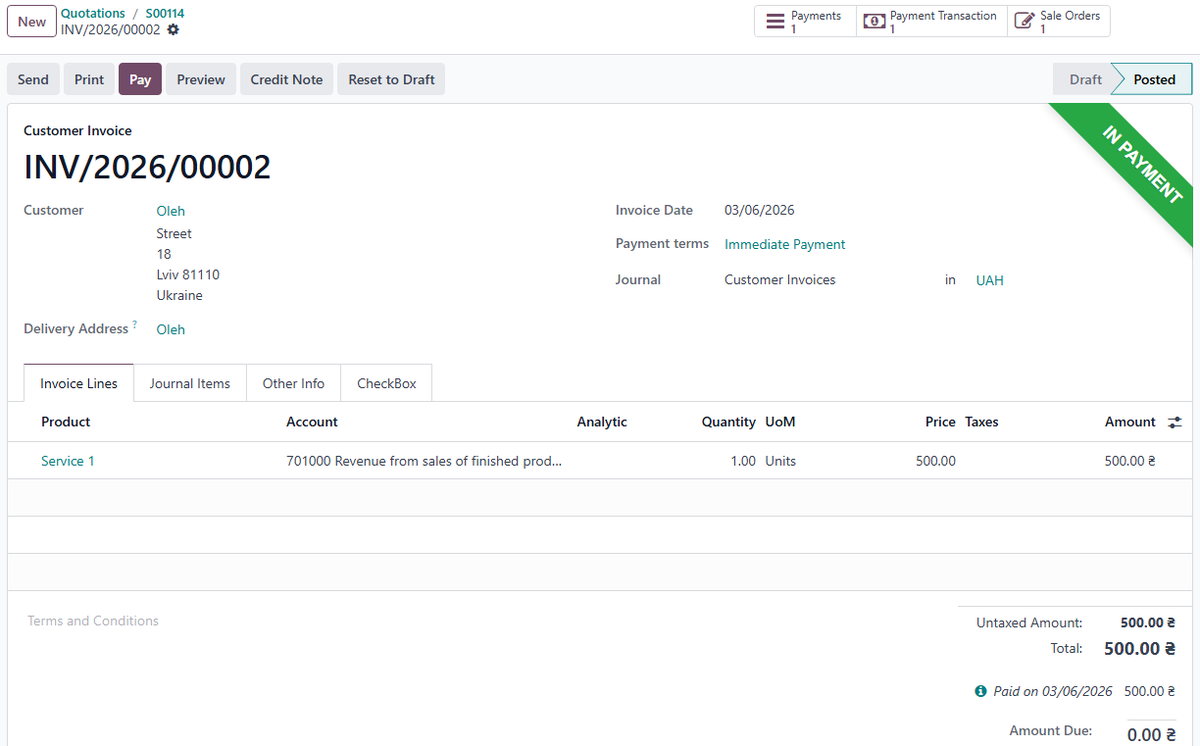
- A related Payment is created for the full payment amount with the status In Process.
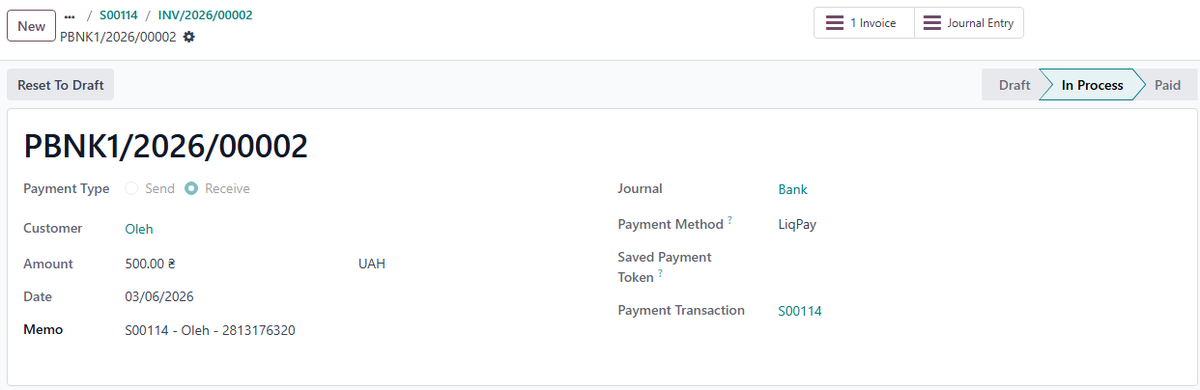
In the Memo field, the system stores the unique payment ID from the LiqPay system. The information from the Memo is passed to the generated journal entries and can be used to reconcile bank statements with LiqPay payments.
- A Payment Transaction is also created automatically. You can open it from the invoice using the smart Buttons, just like the related Payment.
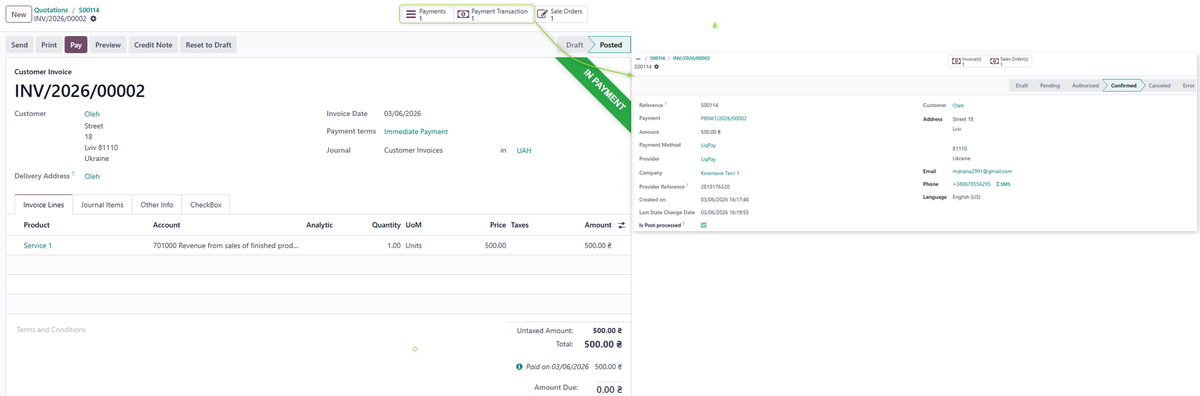
To complete the process, you need to import the bank statement and reconcile it with this payment. After reconciliation, the Invoice and Payment statuses will change to Paid.
To simplify searching and matching payments:
- in the Payment Transaction, the Payment Reference field stores the unique LiqPay payment ID;
- in the related Payment, the same LiqPay ID is written into the Memo field (optionally together with the standard text).
The Memo field is propagated to the Journal Items and is used as the main field for reconciling bank statements with LiqPay payments.
Payment result when the Accounting module is not installed
If the Accounting (accountant) module is not installed:
After a successful payment:
- A Sales Order (SO) is created in Odoo with the status Sales Order.
- An Invoice is automatically created with the payment status Paid.
- A related Payment is created for the full payment amount with the status Paid.
- A Payment Transaction is created; you can open it from the invoice using the smart buttons, just like the related Payment, with information about the LiqPay payment details.
The sales operation is considered completed; there is no separate bank statement reconciliation process.
Payment via Payment Link
Creating a payment link from a Sales Order or Invoice
A payment link can be generated from both a Sales Order and an Invoice.
- Open the required Sales Order or Invoice.
- Click the settings (gear) icon and select Create Payment Link.
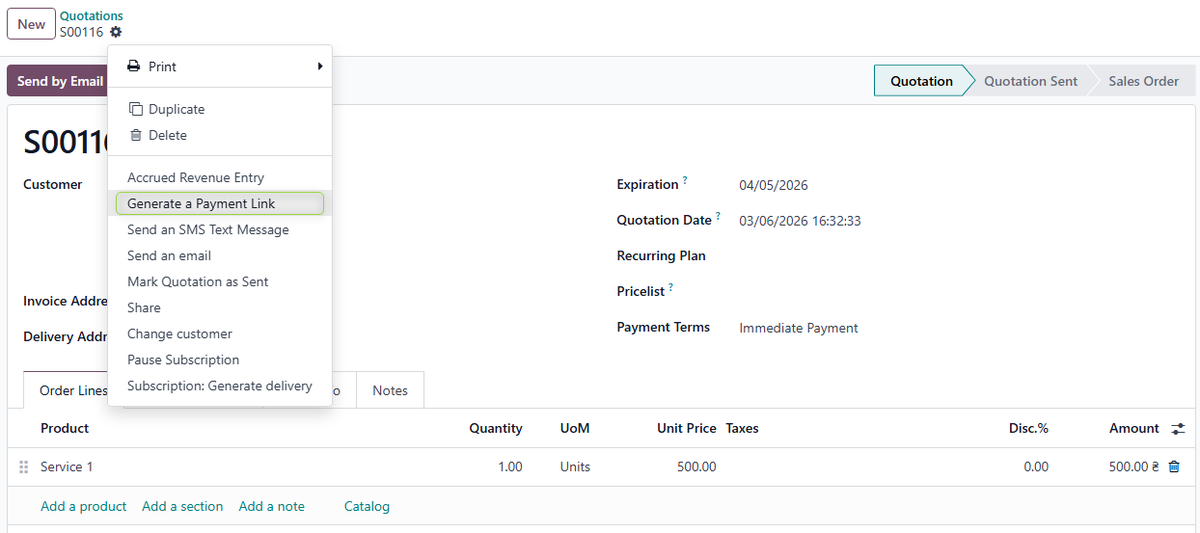
- The system will generate a unique payment link.
- Copy the link by clicking the Create and copy payment link button, and send this link to the customer
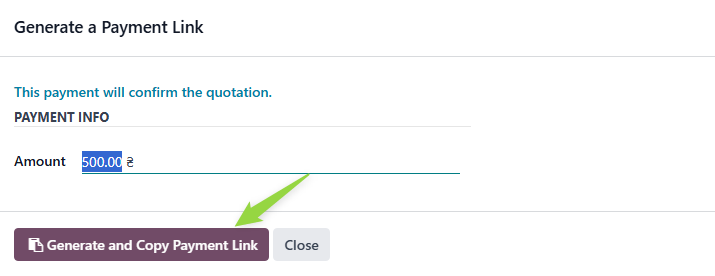
Payment via Payment Link
- The customer opens the received payment link.
- On the payment page, they select the LiqPay method.
- They click Pay — the system redirects them to the LiqPay page.
- The customer completes the card payment on the LiqPay side.
The next steps in Odoo (creation of the Invoice, Payment, and document statuses) are the same as for website payments described in section 4 and depend on whether the Accounting (accountant) module is installed.