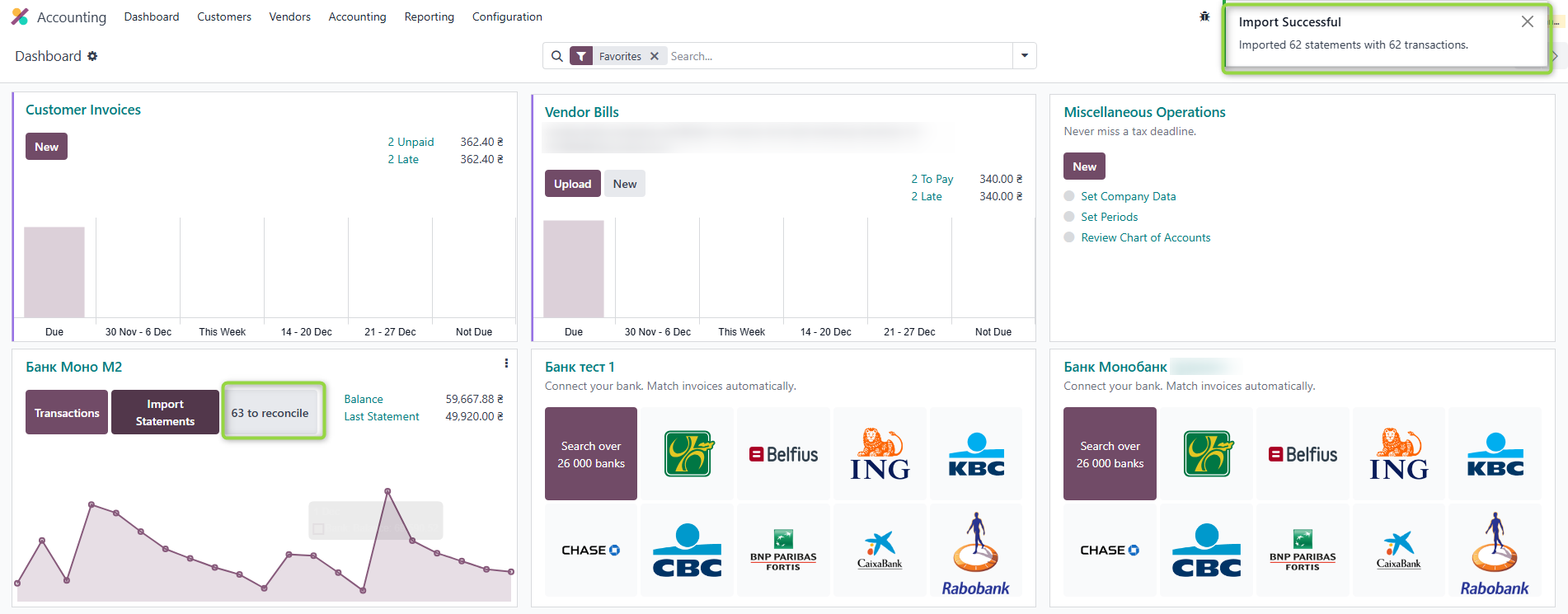
Configuration
Monobank Journal Configuration
Step 1: Create or Open a Journal
- Create or open a bank journal (Journal Type = Bank).
- Enter the bank account number.
- On the Journal Entries tab, find the Bank Feeds field.
- Select Monobank API.
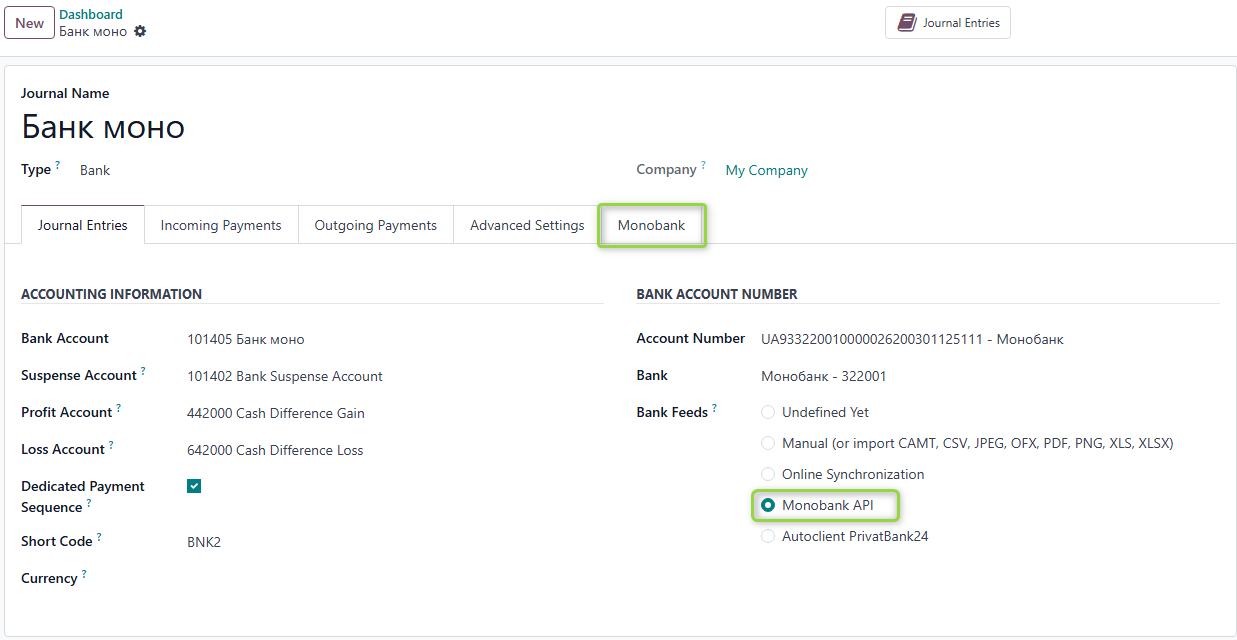
- A new Monobank tab will appear.
If you later select another Bank Feeds option, the Monobank tab will be hidden.
Step 2: Configure the Monobank Tab
In the Monobank tab, fill in the following fields:

Monobank API Token
To fill in this field:
-
Go to https://api.monobank.ua/.
-
Activate the token and copy it.
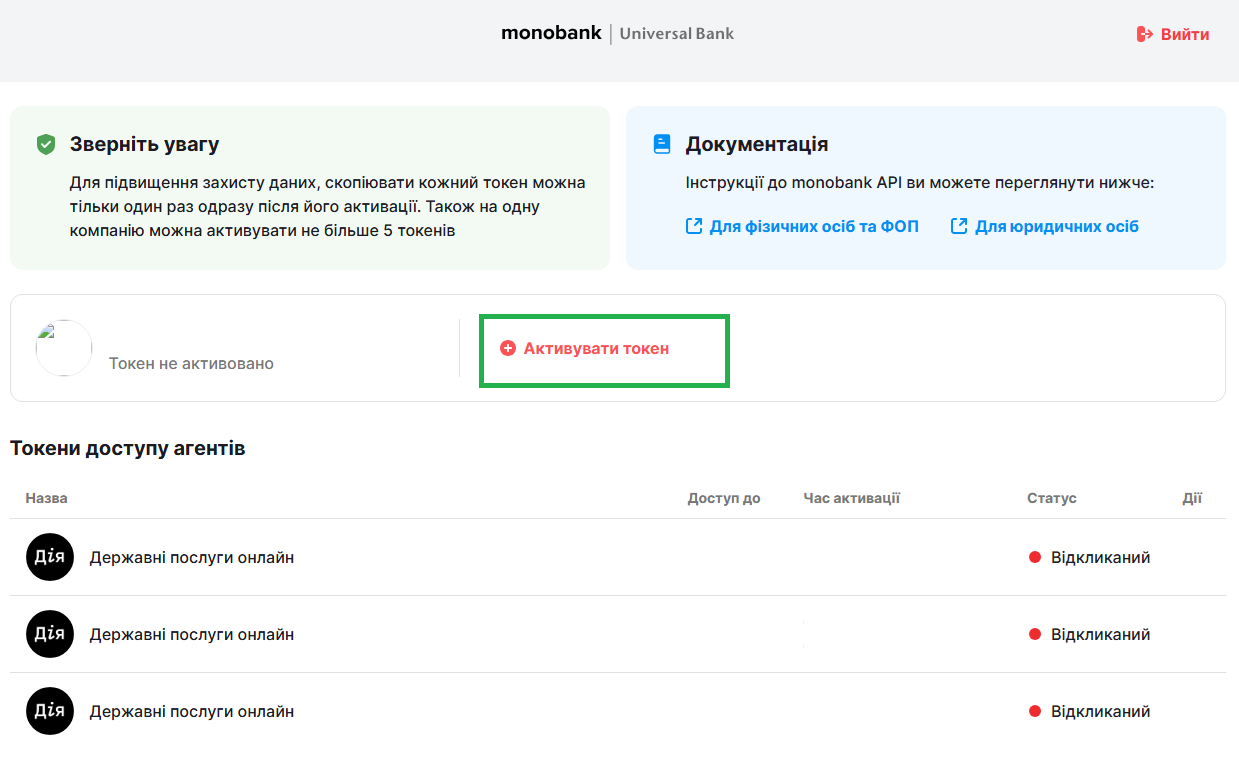
- Paste the token into the Monobank API Token field.
Import Period (Days)
This defines how many recent days of statements should be imported.
Default value: 1 day.
Step 3: Save and Create Scheduler
After saving the Journal with a valid token, a cron (scheduler) is created that runs daily.
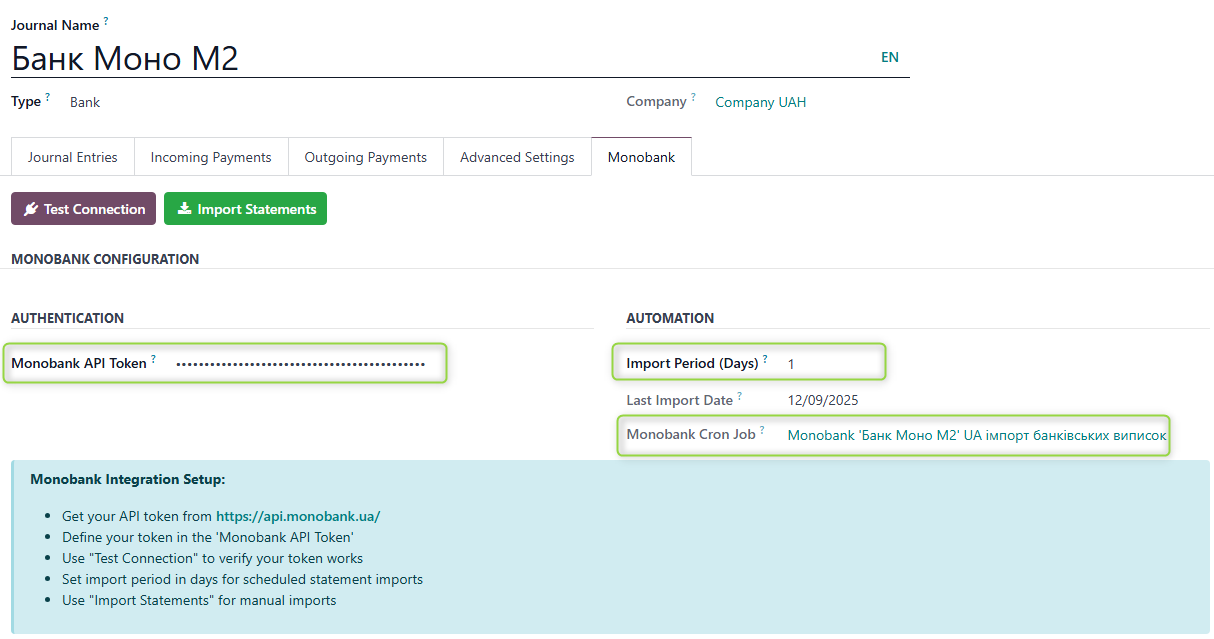
If Monobank is no longer the Bank Feeds source, the cron will be deleted automatically.
Verify Connection
Check whether the connection to Monobank is configured correctly:
-
Click the Test Connection button.
-
If the data is correct, a confirmation message will appear in the upper-right corner:

Manual Statement Import
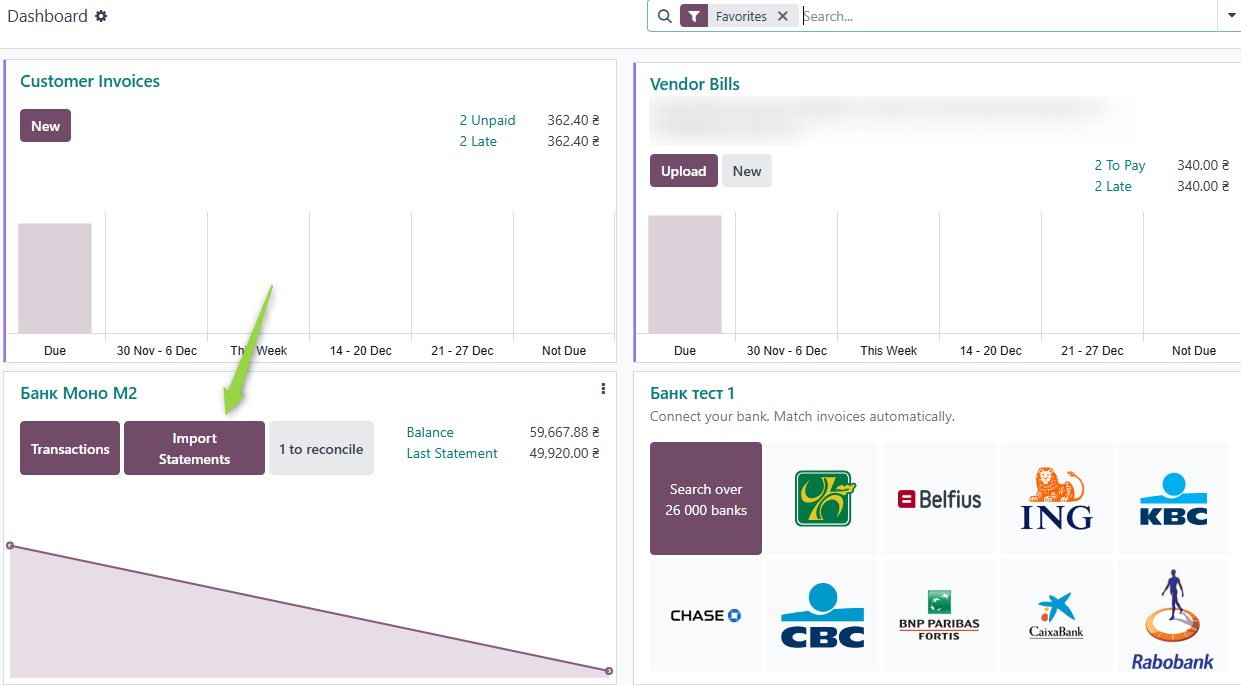
Method 1: From the Journal Dashboard
Go to Accounting/Invoicing → Journal Dashboards → click Import Statements.
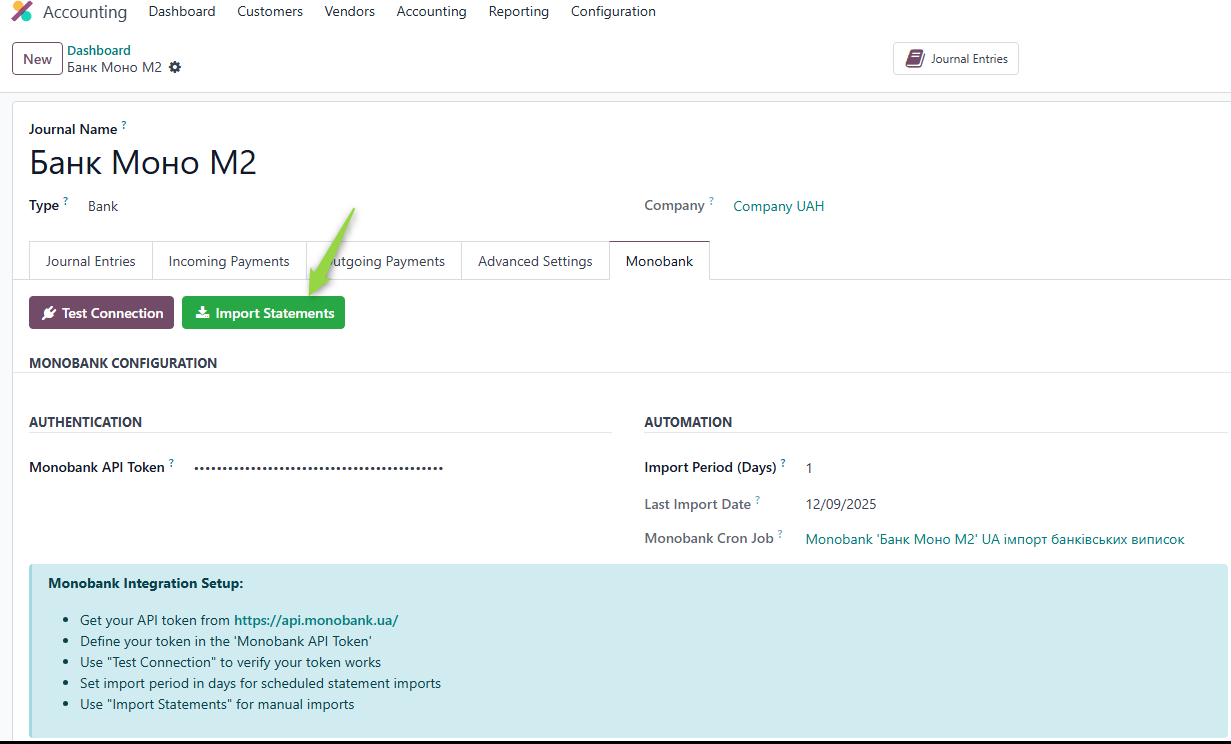
Method 2: From the Journal Form
Open the bank journal and go to the Monobank tab → click Import Statements.
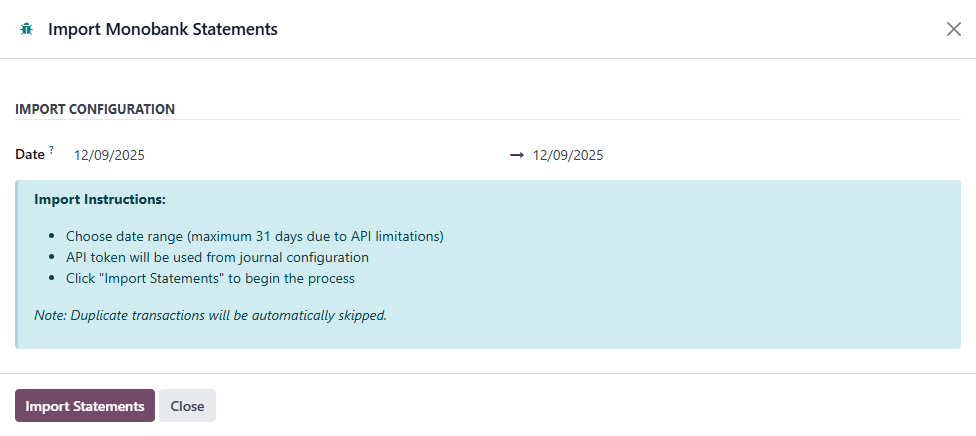
Select Import Period
A window with a Date field will appear. You may:
-
Keep the default values:
- Start Date = current date − number of days specified in "Import Period (Days)"
- End Date = current date
-
Or set your own date range for importing statements.
Import Result
After clicking Import Statements, the loading process will begin.
When the import is completed:
- A success message will appear in the upper-right corner;
- The number of imported transactions to reconcile will be displayed on the Bank Journal dashboard.