Module Usage
Payment from the Odoo website
Steps to make a payment
- Open the Odoo website.
- Add a product to the cart.
- Proceed to checkout.
- At the payment method step, choose Plata by Mono.
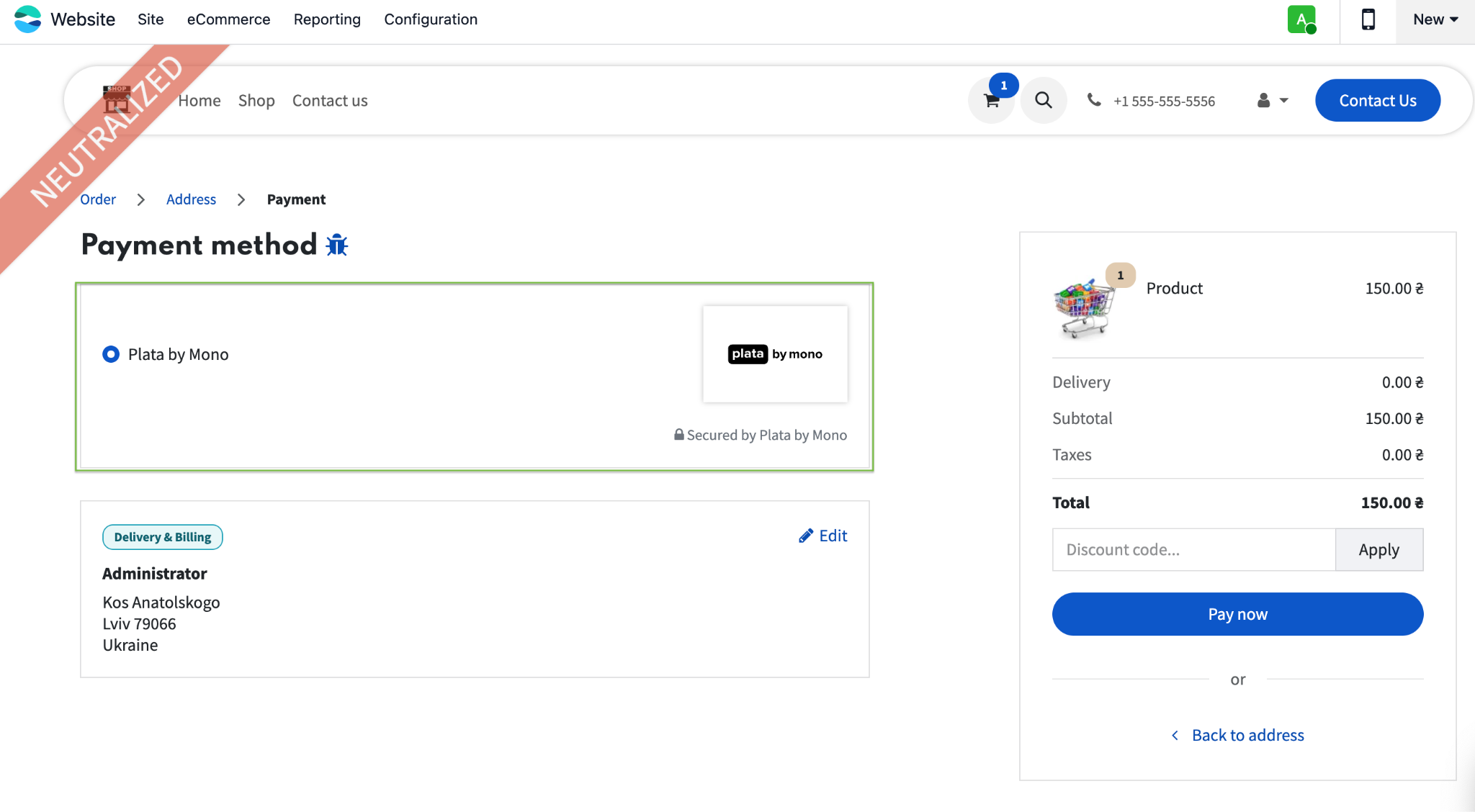
- Confirm the order — the system redirects the user to the secure monobank page.
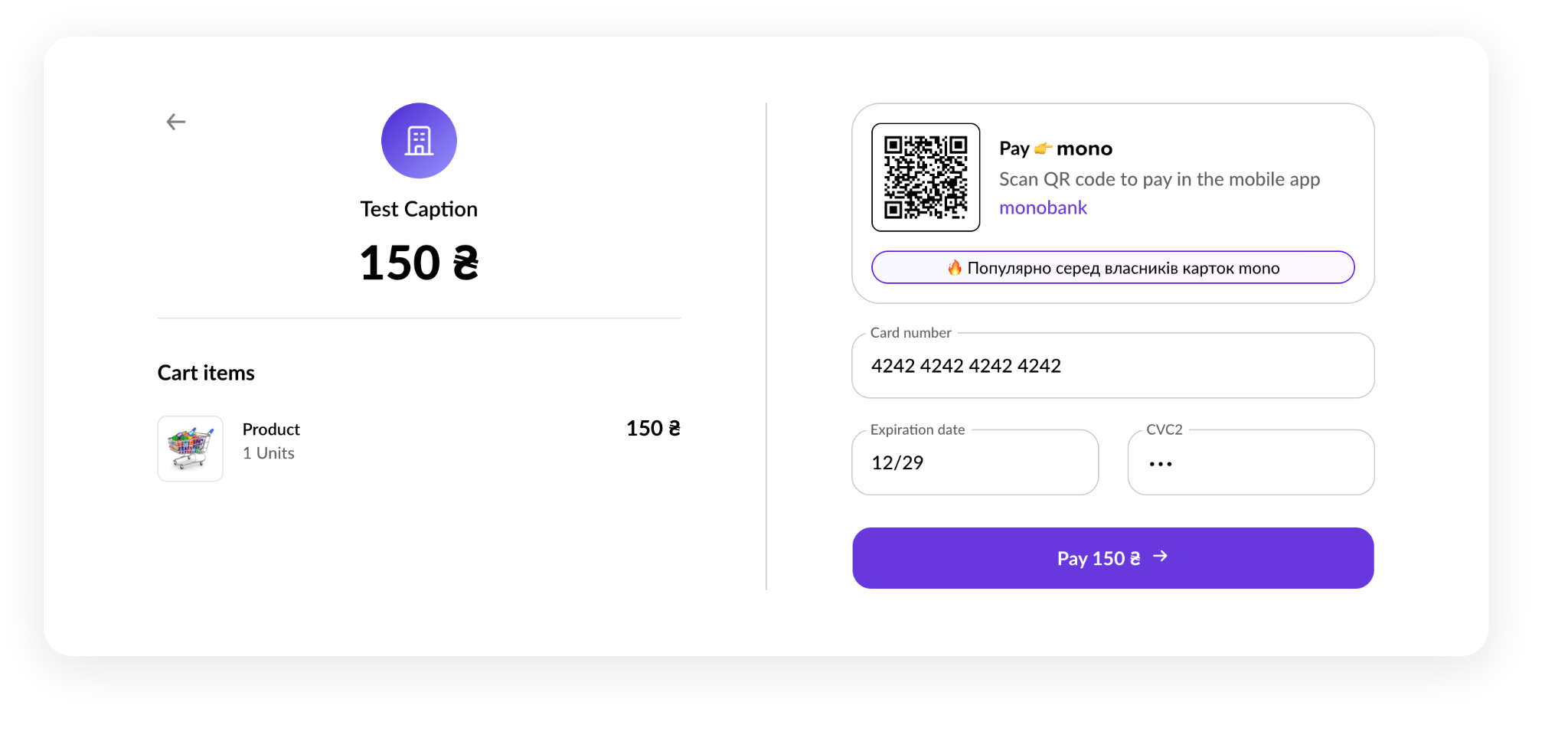
- The customer pays by card on the monobank side.
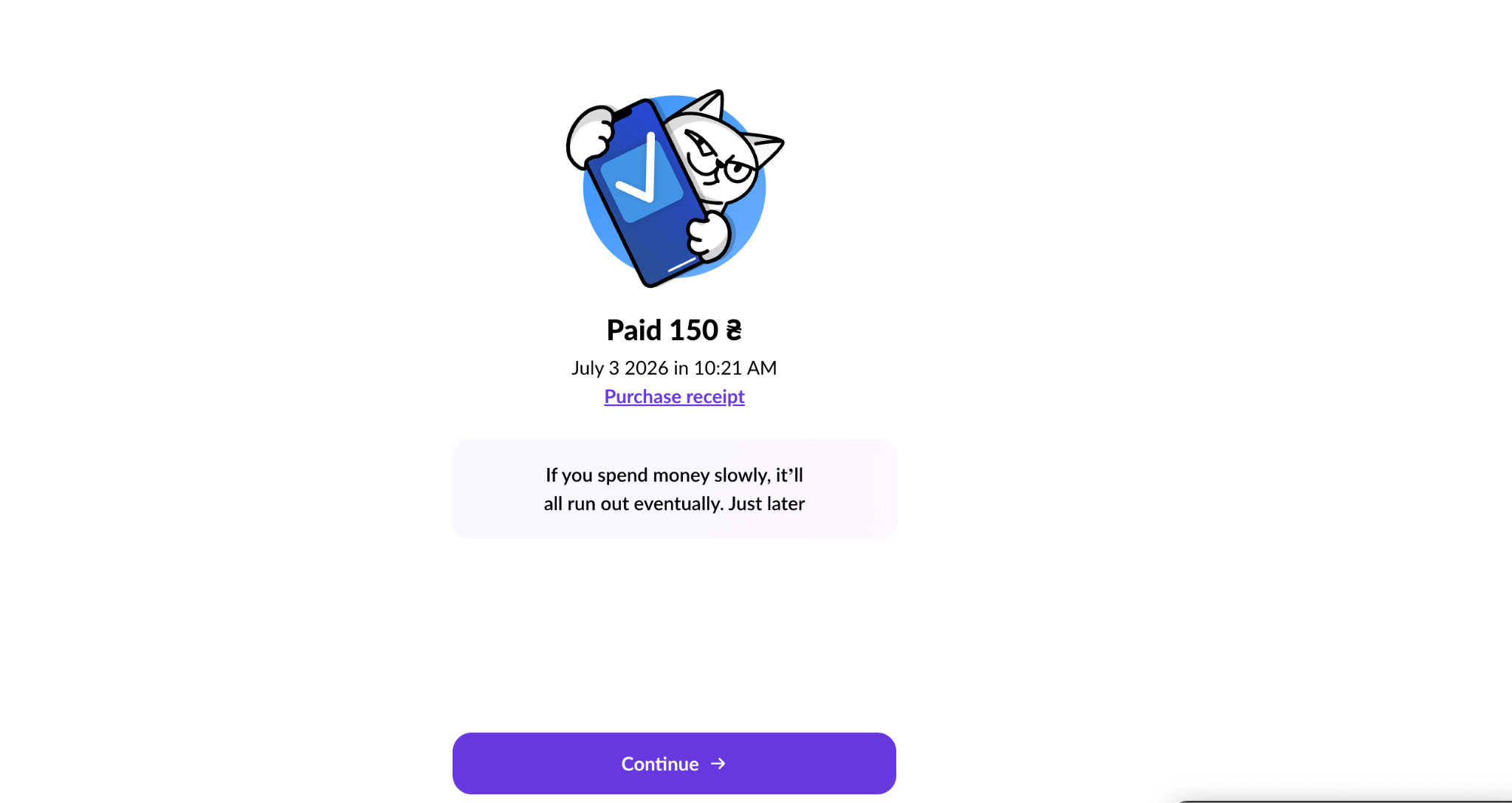
Payment result
Payment result when the Accounting module is installed (Enterprise)
If the Accounting (accountant) module is installed, after a successful payment:
- A Sales Order (SO) is created in Odoo in the "Sales Order" status.
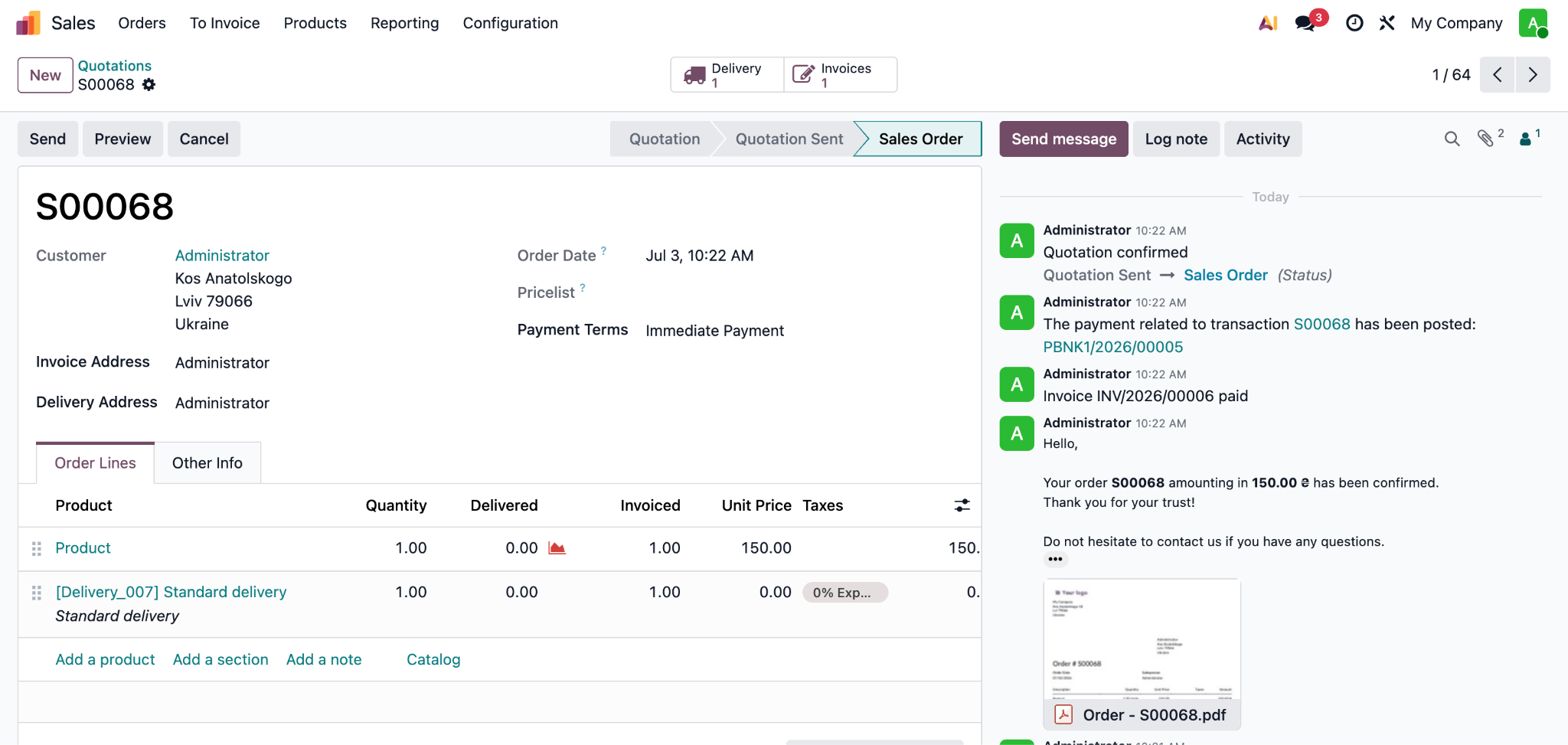
- An Invoice is created automatically.
- The invoice payment status is In Payment.
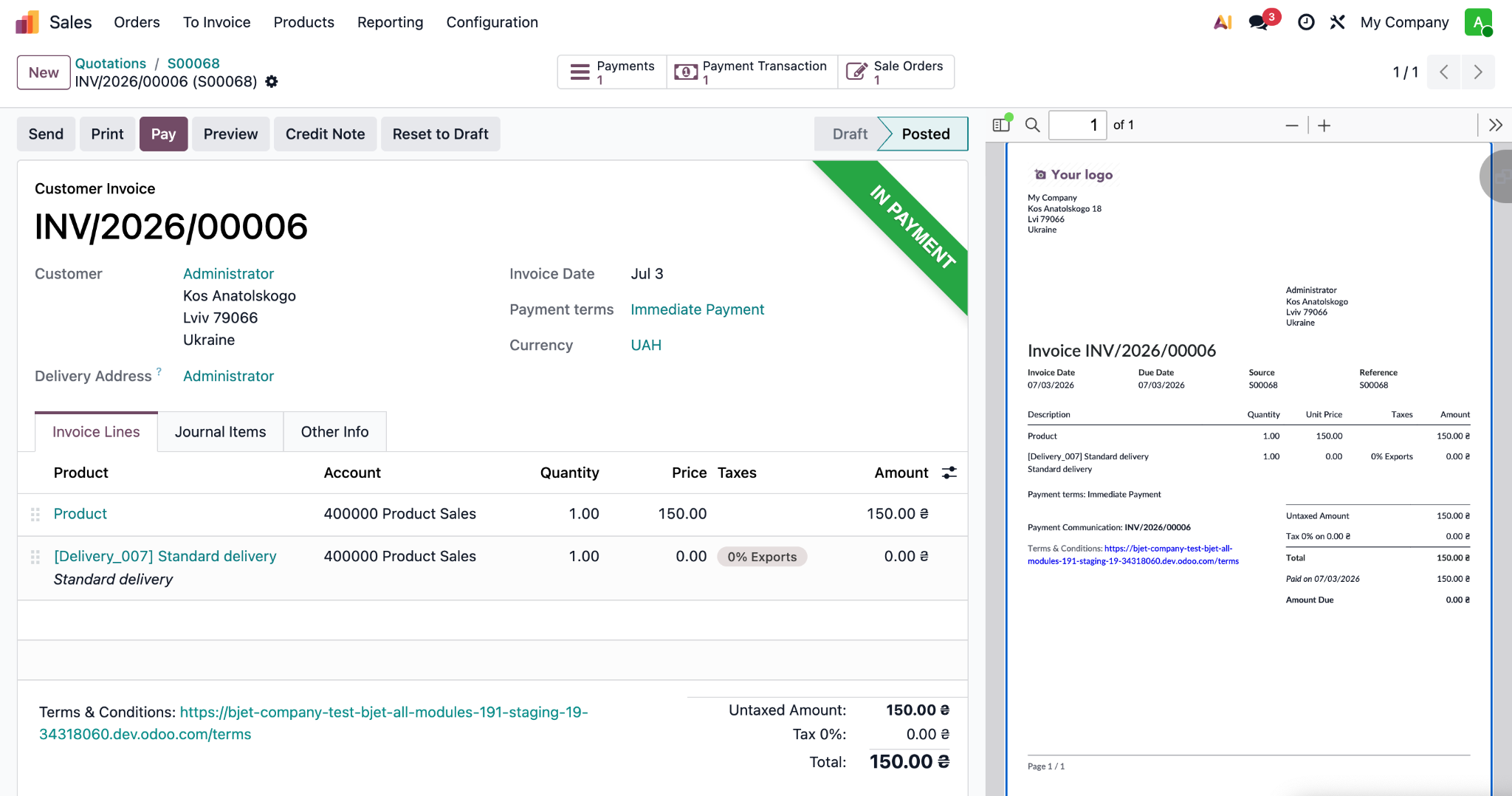
- A linked Payment for the full amount is created with the In Process status.
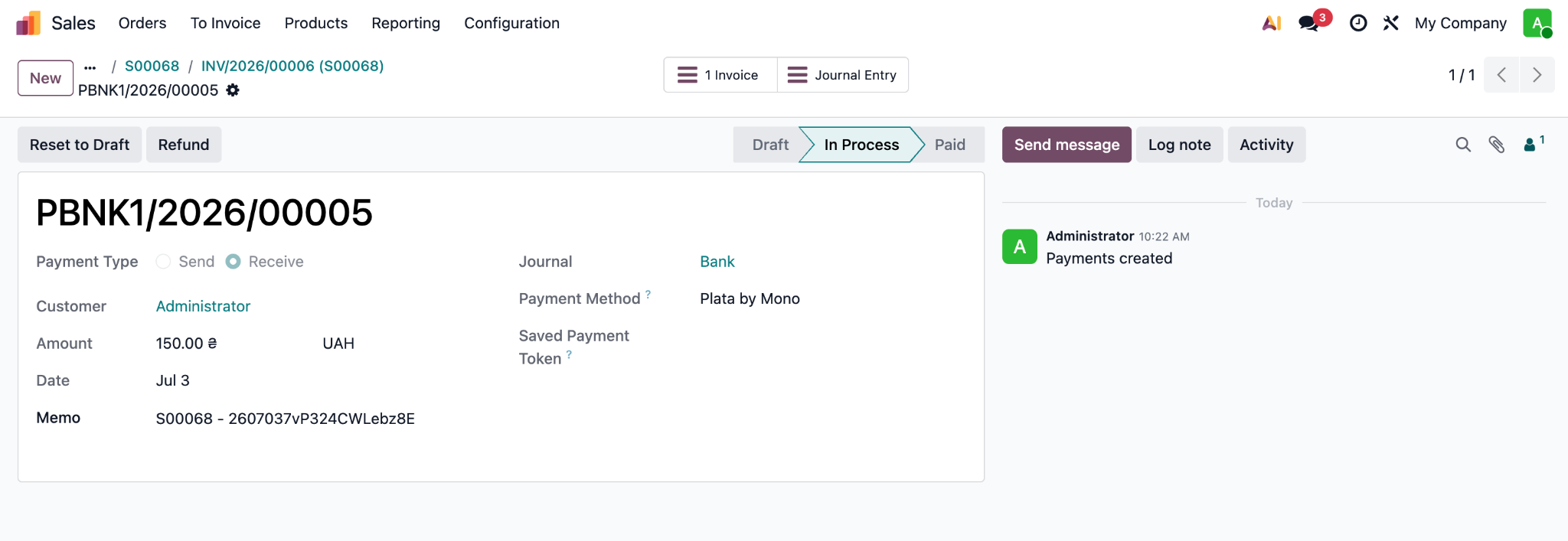
- A Payment Transaction is also created automatically; it is reachable from the invoice via the Smart Buttons, as is the linked Payment.
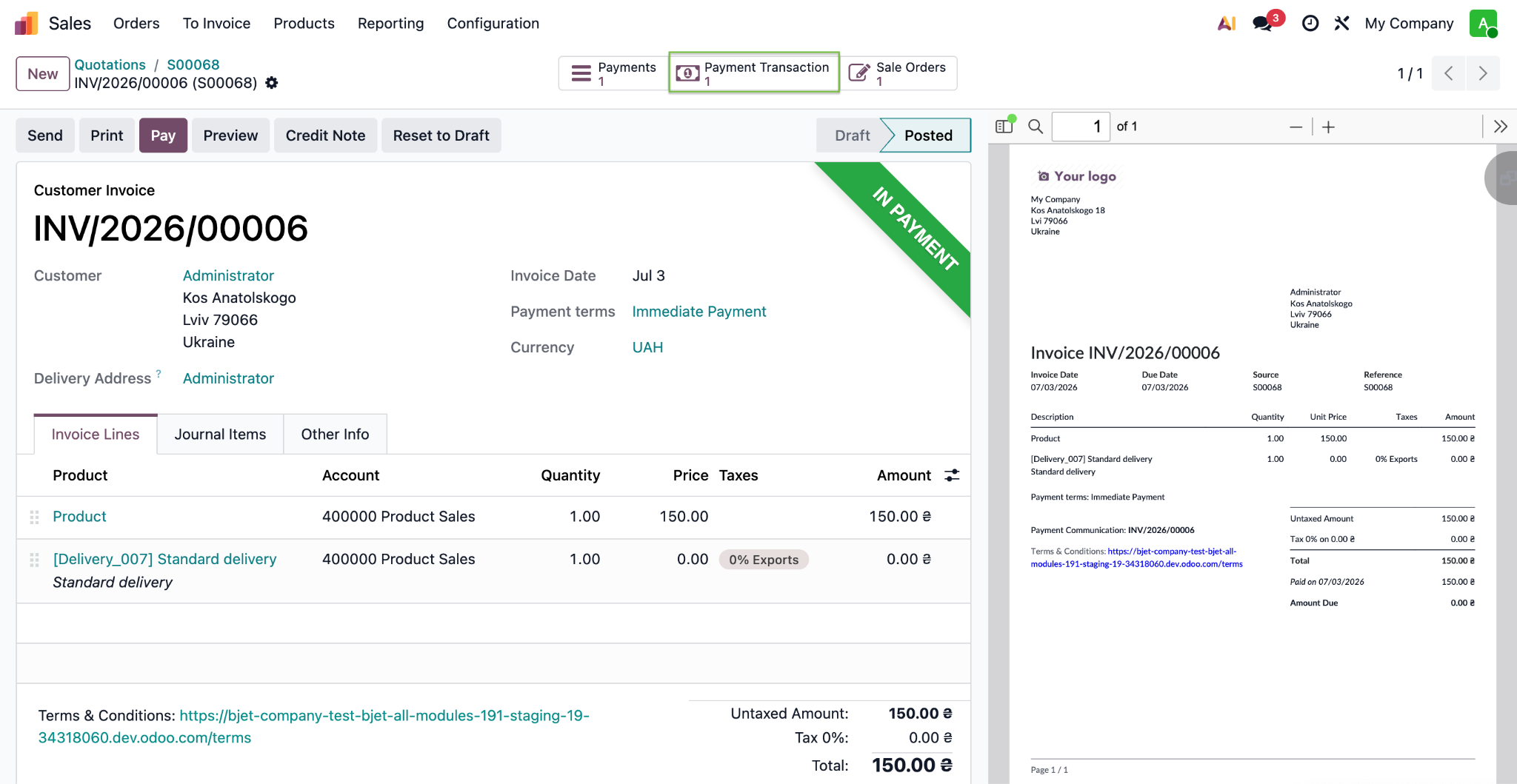
In the Memo field, the system stores the unique Plata by Mono invoiceId. This information is passed to the accounting entries (Journal Items) and is used to reconcile bank statements with Plata by Mono payments.
To complete the operation, you must post the bank statement and reconcile it with this payment. After reconciliation, the Invoice and Payment status changes to Paid.
- in the Payment Transaction, the unique Plata by Mono invoiceId is stored in the Payment Reference / Provider Reference field;
- in the linked Payment, the same invoiceId is recorded in the Memo field.
Payment result when the Accounting module is not installed (Community)
If the Accounting (accountant) module is not installed, after a successful payment:
- A Sales Order (SO) is created in Odoo in the "Sales Order" status.
- An Invoice is created automatically with the Paid payment status.
- A linked Payment for the full amount is created with the Paid status.
- A Payment Transaction is created, reachable from the invoice via smart buttons, with the Plata by Mono payment details.
- The sales operation is considered complete; there is no separate bank statement posting process.
Payment via Payment Link
Creating a payment link from a Sales Order or Invoice
A payment link can be created from either a Sales Order or an Invoice.
- Open the relevant Sales Order or Invoice.
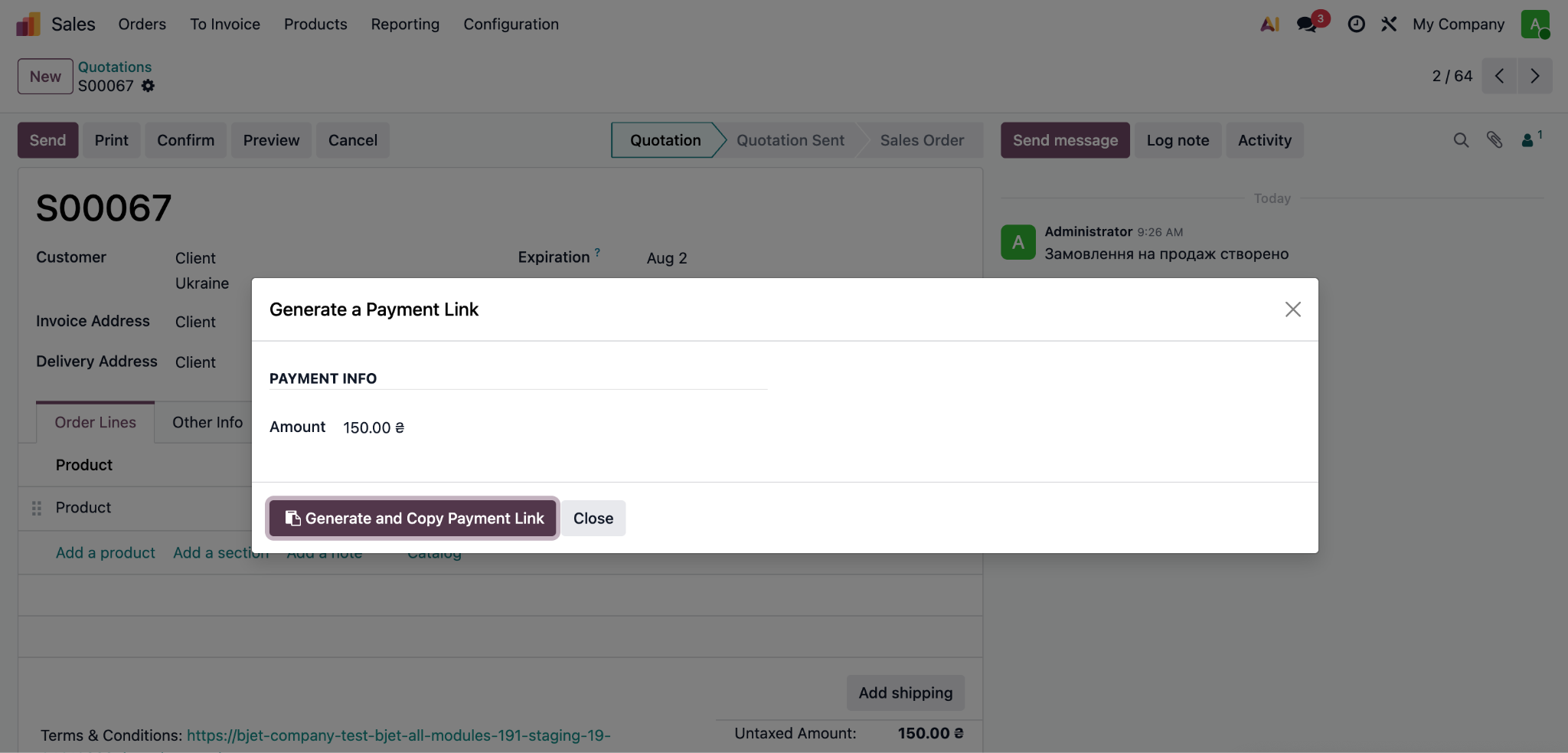
- Click the settings icon (⚙️) and choose the Create a Payment Link action.
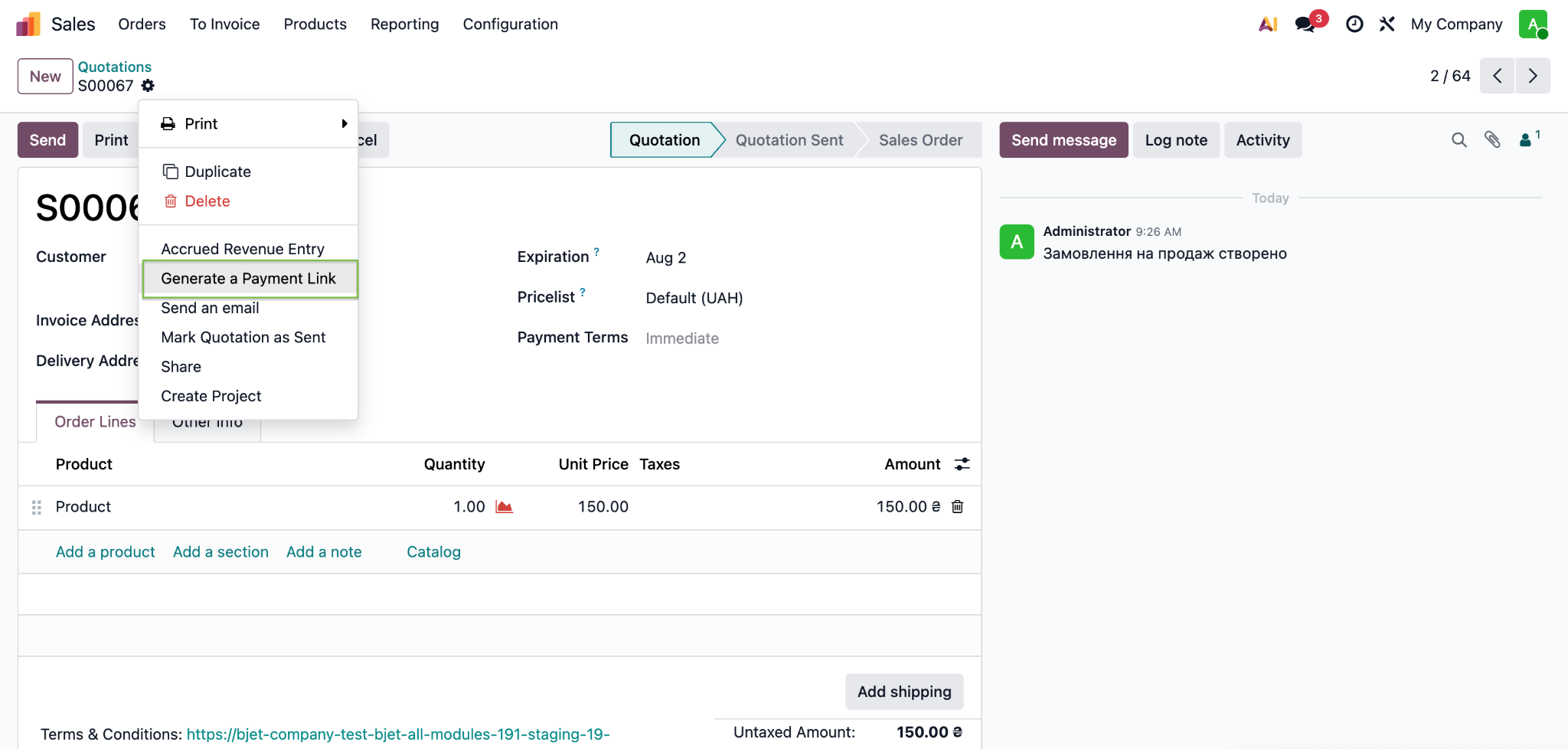
- The system generates a unique payment link.
- Copy the link by clicking Generate and Copy Payment Link and send it to the customer.
Paying via the Payment Link
- The customer opens the received link.
- On the payment page, the customer selects Plata by Mono.
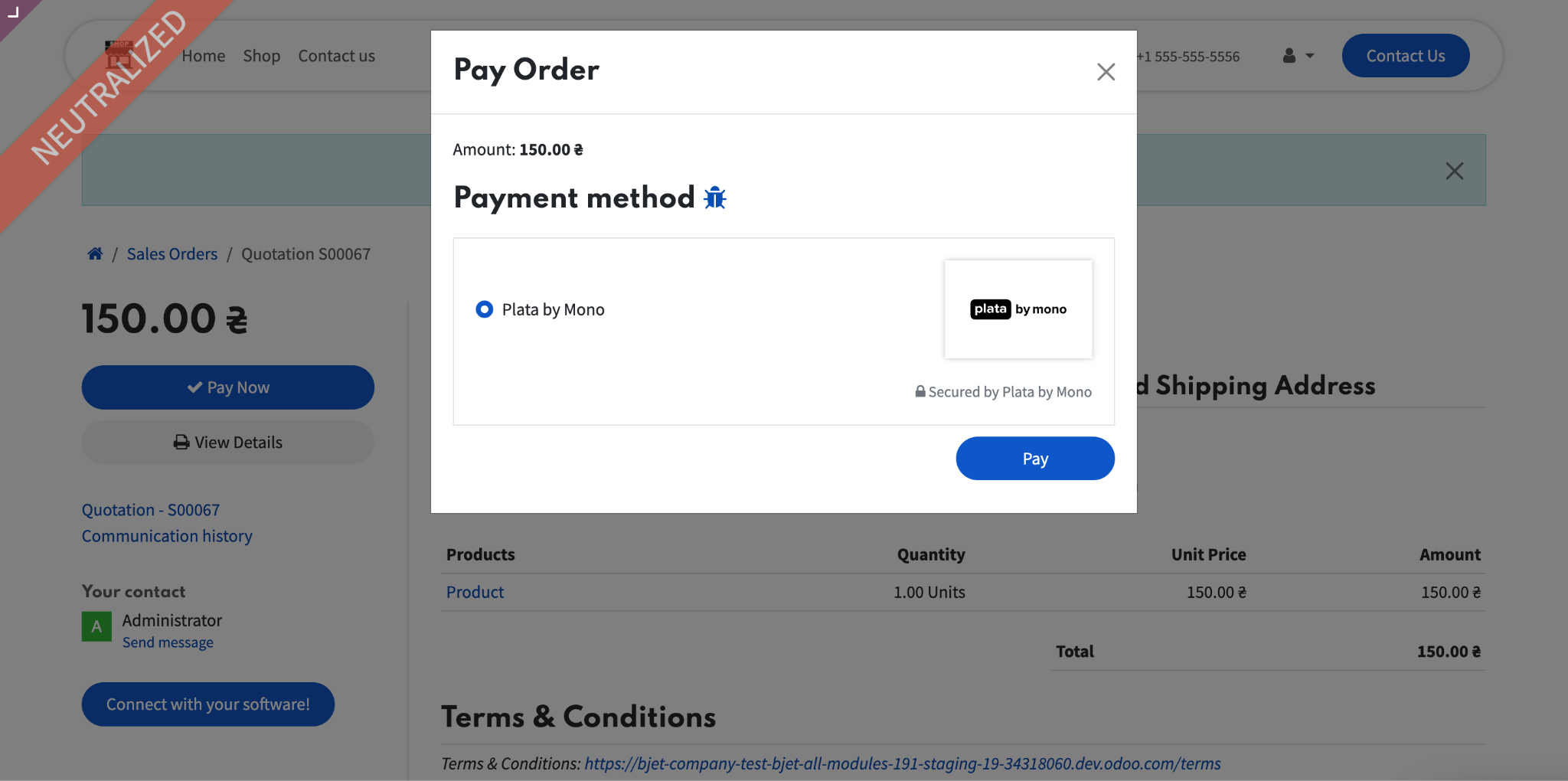
- The customer clicks Pay — the system redirects to the monobank page.
- The customer pays by card on the monobank side.
The subsequent steps in Odoo (creating the Invoice, Payment, document statuses) are the same as the Payment from the Odoo website section above and depend on whether the accountant module is installed.
Refunds
The module uses the standard Odoo refund mechanism — funds are returned to the same customer card via the monobank API, without logging into the merchant cabinet and without requesting card details.
Full refund
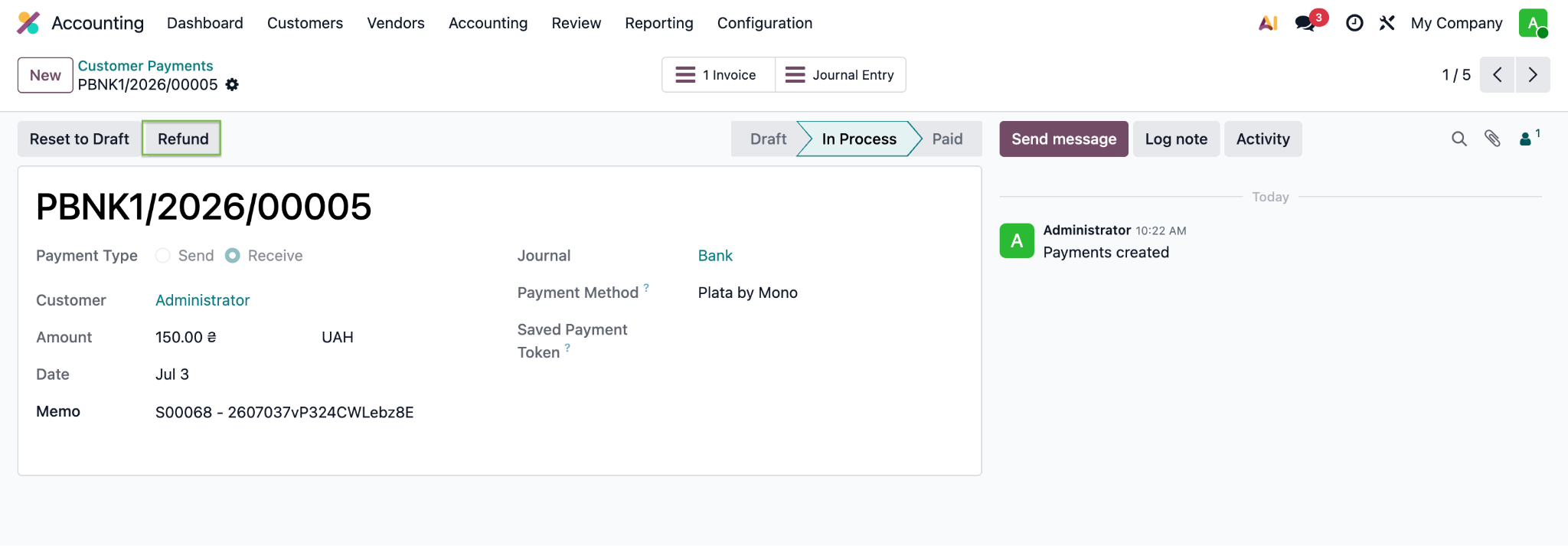
- Open the Payment (account.payment) made via Plata by Mono.
- Click the Refund button.
- In the dialog, the refund amount already equals the full payment amount.
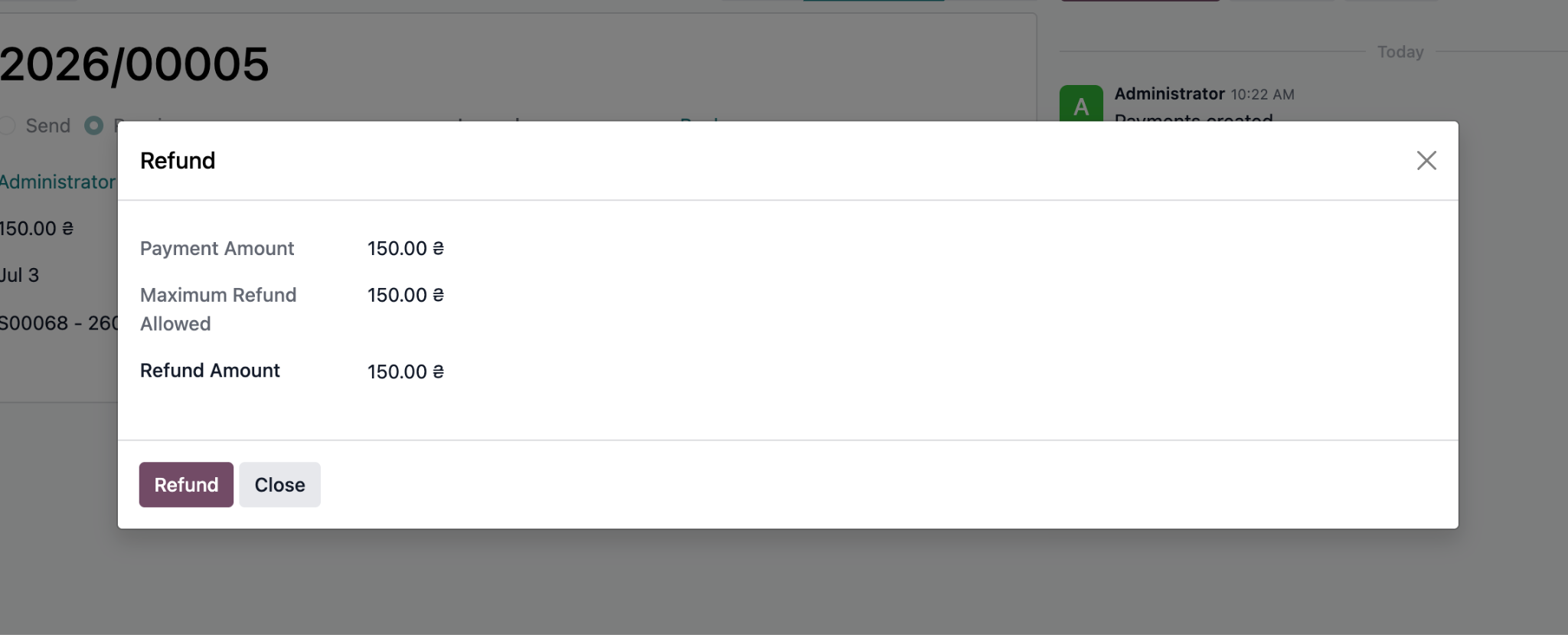
- Click Refund — the funds are returned to the customer's card.
Partial refund
- Open the Payment and click Refund.
- In the Refund Amount field, enter the required (smaller) amount, e.g. 50 UAH out of 150 UAH.
- Confirm. The "Maximum Refund Allowed" decreases by the refunded amount for subsequent refunds.
Notes:
- Odoo will not allow entering an amount greater than the "Maximum Refund Allowed".
- For a full refund on an Invoice, a Credit Note is created (standard Odoo flow).
- If the Mono API returns an error, the system shows the reason and the original Payment status remains unchanged.
Bank statement reconciliation
- The unique Mono invoiceId is stored:
- in the Payment Transaction — the Payment Reference / Provider Reference field;
- in the linked Payment — the Memo field (passed to Journal Items).
- Use this invoiceId to match bank statement lines with payments.