Section 1: Initial Setup (For Administrators)
Before using the module, you must connect your Nova Poshta account and synchronize the latest reference data for cities and warehouses.
1.1. Delivery Method and API Configuration
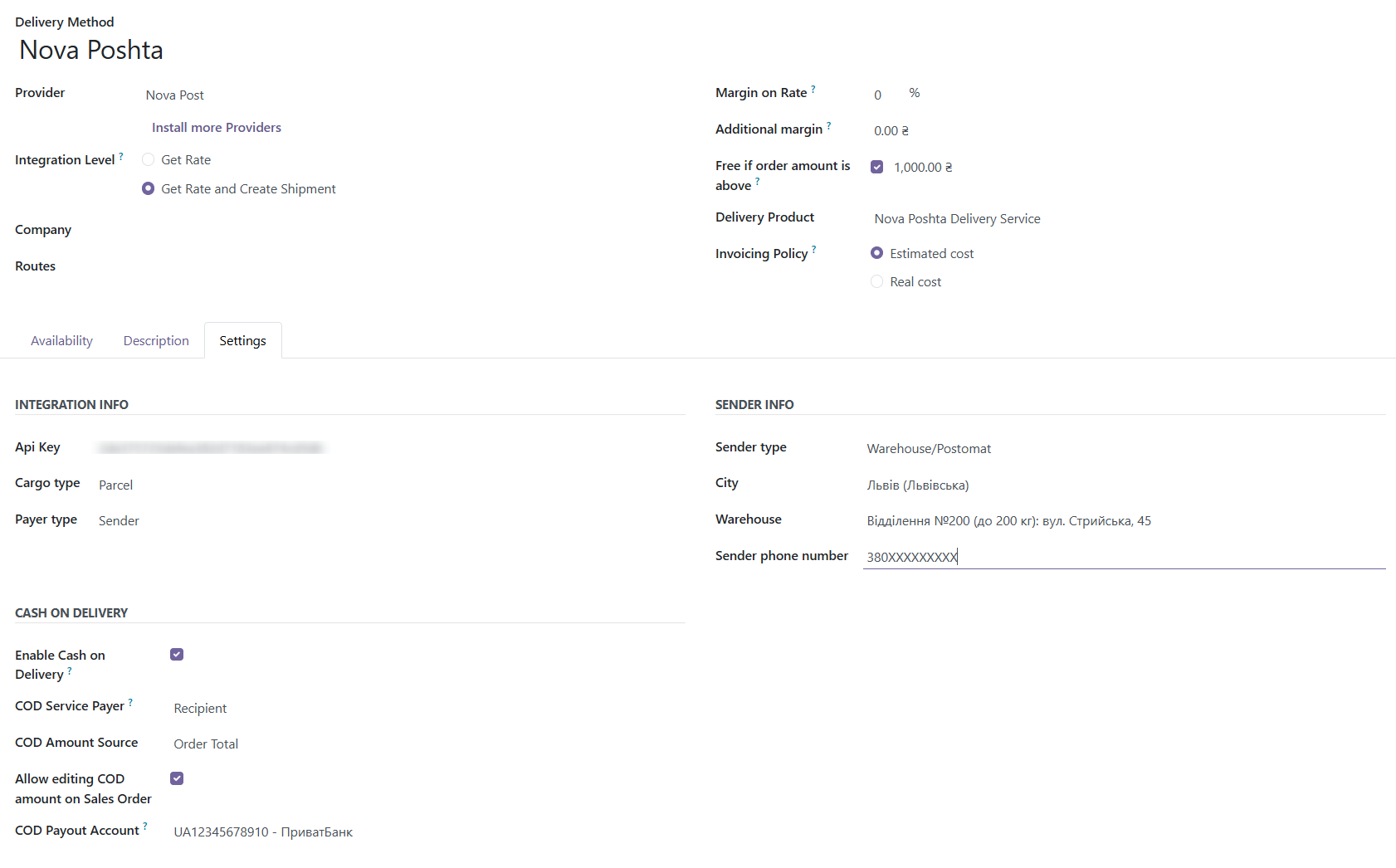
- Navigate to the Sales or Website module ➔ Configuration ➔ Shipping Methods.
- Find or create a delivery method named Nova Poshta.
- In the Provider field, select Nova Post.
- Go to the Settings tab:
- Api Key: Enter your unique API key from the Nova Poshta business cabinet.
- Sender Info: Specify the Sender type (e.g., Warehouse), City, Warehouse (Branch), and your Sender phone number in the format 380XXXXXXXXX.
- Default Shipment Info: Select the Cargo type (Parcel, Documents, Cargo, Pallet) and the Payer type (Sender or Recipient).
- Locate the CASH ON DELIVERY (COD) block and configure the following:
- Enable Cash on Delivery: Check this box to activate the money transfer service for this shipping method.
- COD Service Payer: Defines who pays the Nova Poshta commission for the transfer (usually Recipient).
- COD Amount Source: Specifies where the system pulls the amount to be paid (e.g., Order Total means the COD value will equal the total order amount).
- Allow editing COD amount on Sales Order: If enabled, managers can manually change the transfer amount directly on the Sale Order before creating the waybill (useful for partial prepayments).
- COD Payout Account: Select your company's bank account (IBAN format) where Nova Poshta will transfer the collected funds (e.g., UA112345678910 - PrivatBank). This account must be pre-configured in Odoo's bank settings.
Basic Delivery Settings (Standard Odoo Features)
In addition to Nova Post-specific settings, standard Odoo parameters allow you to manage pricing and visibility:
- Integration Level:
- Get Rate: Only calculates the delivery cost during checkout.
- Get Rate and Create Shipment: (Recommended) Calculates the cost and automatically generates Express Waybills (TTNs) during validation.
- Margin on Rate / Additional margin: Automatically increases the calculated Nova Poshta cost by a percentage (e.g., +5%) or a fixed amount (e.g., +20 UAH) to cover packaging/handling expenses.
- Free if order amount is above: Sets a free delivery rule. If the customer's cart exceeds this limit, the shipping cost will be 0.
- Delivery Product: The service item added as a line to the Sale Order and Invoice for the shipping fee.
- Invoicing Policy:
- Estimated cost: Charges the amount calculated during checkout.
- Real cost: Updates the order amount based on the actual price returned by the Nova Poshta API after the waybill is generated.
- Content Tab: Limits the availability of this method:
- Max Weight / Max Volume: Hides the method if the cart exceeds these values.
- Must Have / Excluded Tags: Controls availability based on product tags.
Click Save or publish the method to make it available in the website cart.
1.2. Reference Data Synchronization (Cities and Warehouses)
The system automatically updates reference data via a daily CRON scheduled action so that customers can choose correct branches.
Reference data can be viewed in Inventory ➔ Operations ➔ Nova Post.