Section 3: Sales Order Processing (Manager)
3.1. Customer Data Verification
- Open the created Sale Order.
- The Delivery Address will automatically store the details entered by the customer (Recipient type, City, Warehouse/Postomat, Name, and Phone). This contact is saved as a Nova Post type for future use.
3.2. Shipment Refinement (Shipping Wizard)
If an order is created manually or requires edits:
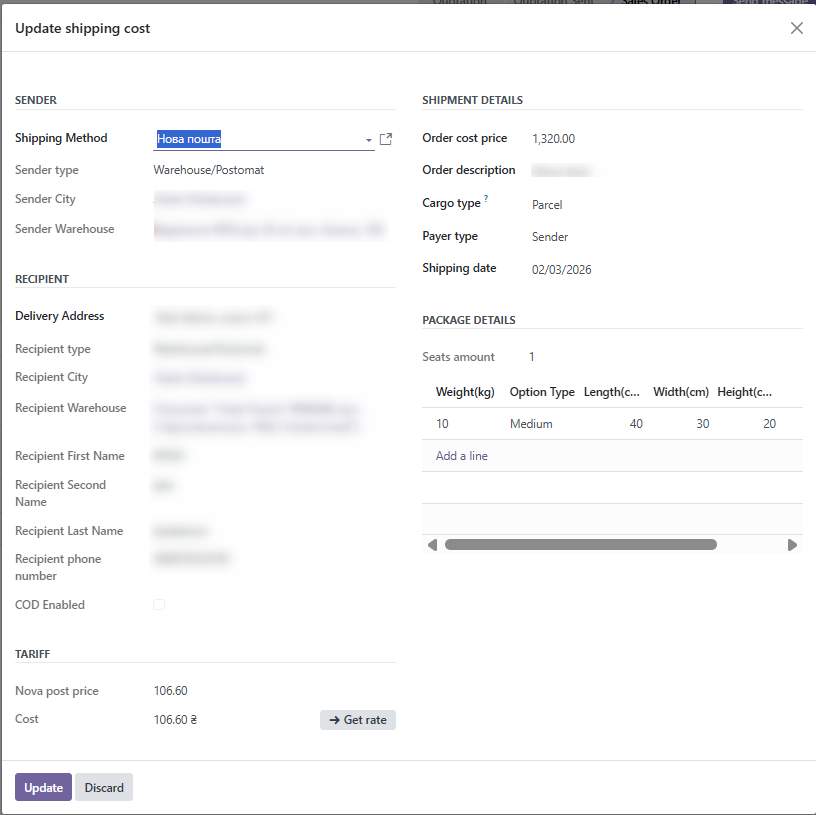
- Click Add shipping in the order.
- In the wizard, select:
- Shipping method: Select the Nova Poshta method.
- Recipient Address, Cost Price, and Description.
- Cargo Type, Payer Type, and Shipping Date.
- Package Details: Set weight and dimensions for each seat. You can use presets like "Small," "Medium," or "Large (Postomat)."
- Click Get Rate, then click Add/Update.
3.3. Warehouse Operations and Waybill (TTN) Creation
Once the Sale Order is confirmed, a Delivery Order (Stock Picking) is formed.
3.3.1. Creating the Express Waybill
- Go to Inventory ➔ Transfers and select the shipment.
- Process the items and enter the "Done" quantity.
- Click Validate.
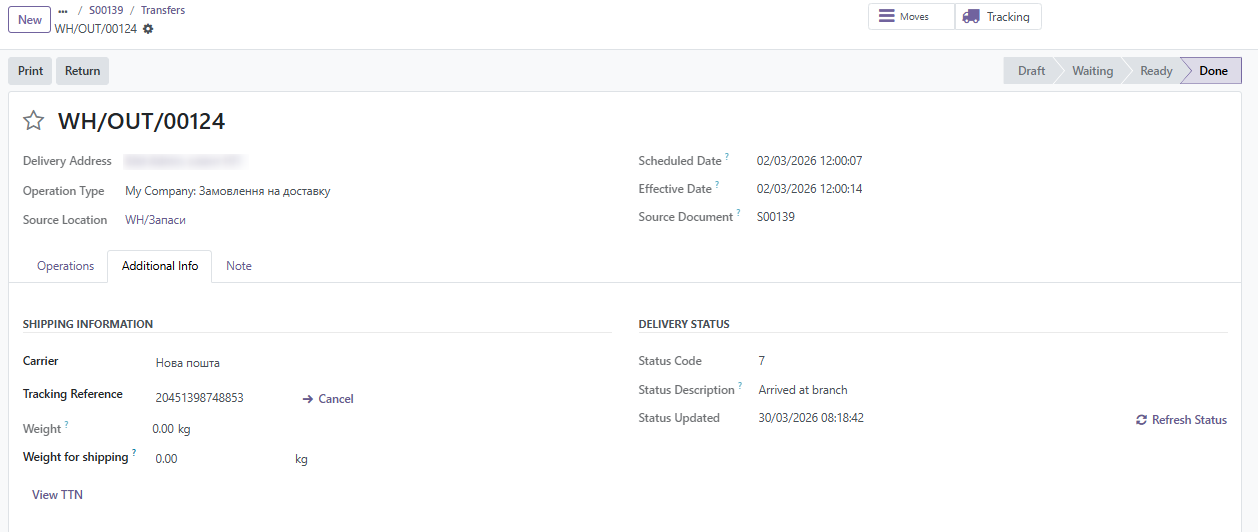
- The system automatically sends data to Nova Poshta and generates the Express Waybill (TTN). The Tracking Reference, status info, and estimated delivery date will be saved on the Additional Info tab.
3.3.2. Document Management
- Zebra PDF: After generation, a button appears to print thermal labels (100x100 format).
- Update shipping: If the shipment changes after the TTN is created, use this button to send updated data (like weight) to Nova Poshta.
- Cancel: If the shipment is cancelled in Odoo, the module sends a request to delete the waybill from Nova Poshta's database.
3.3.3. Manual TTN Entry
If you created a waybill via the mobile app or business cabinet, you can manually link it:
- Open the Transfer.
- Ensure the Carrier is set to Nova Post.
- Enter the 14-digit number in the Tracking Reference field and save. The system will recognize the number, create a Consignment Note record, and fetch the current status from the API automatically.